Quick action entry
Focuster allows you to add a bunch of specific information to your actions, including:
action duration, start time, tags, notes, due date, list.
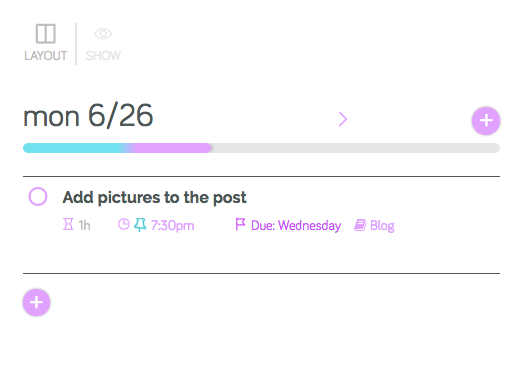
You can add this information by clicking on the icons under your action description.
But if you add tens of tasks, it may be more convenient to use a quick action entry. It allows you to add the following information when creating a new action in your Todo or Today list:
-
action duration;
-
start time;
-
tags;
-
due dates;
-
notes.
Add action duration
Simply type the action duration after its description in the format "1h", "30min", '0.5h":
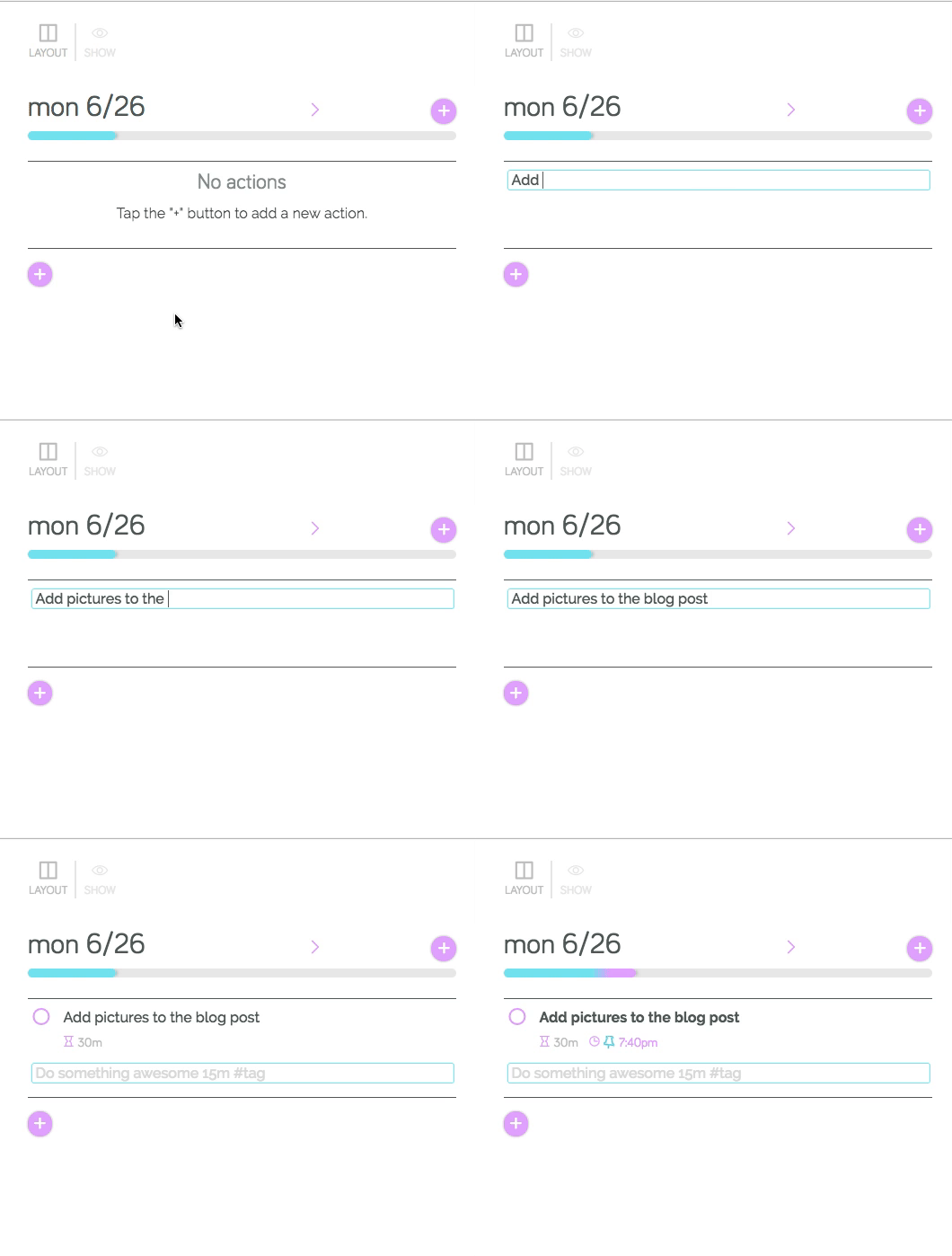
Add a start time:
You can quickly add a start time to your action by typing it after action's description in the format "8am" ,"1:30pm", "23:00":
You can add a day too, like "Wed 3pm" or "9/9 3:30pm". See Dates and times in quick entry.
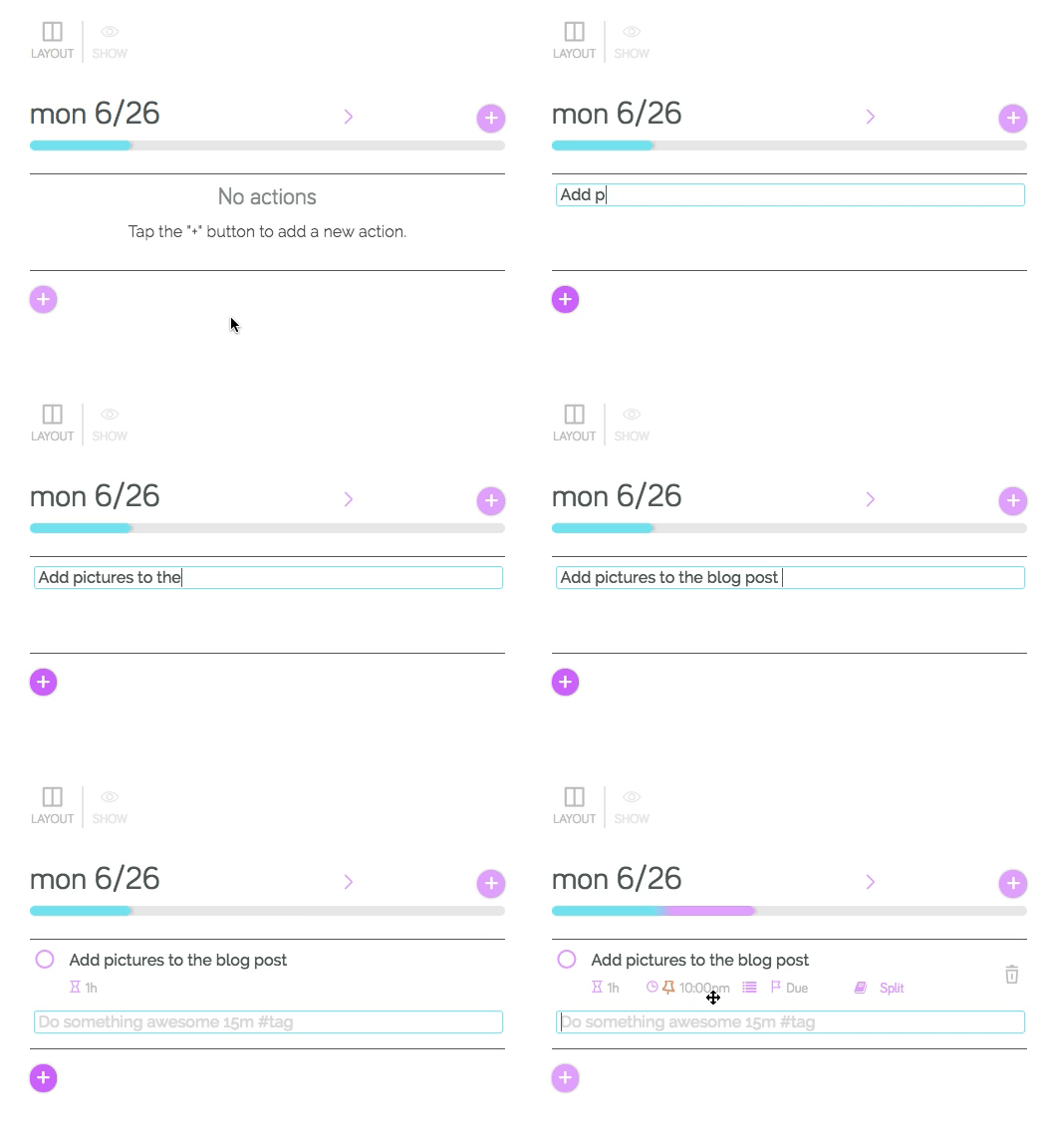
When you add a start time to your actions, we call it "pinning". It means that this action will be pinned to the time you've selected regardless its priority on your list. You can find more information about pinning here.
Add tags:
In Focuster you can add tags to your actions. It makes it faster to search and filter your actions. Quickly add tag by typing it before or after your action description:
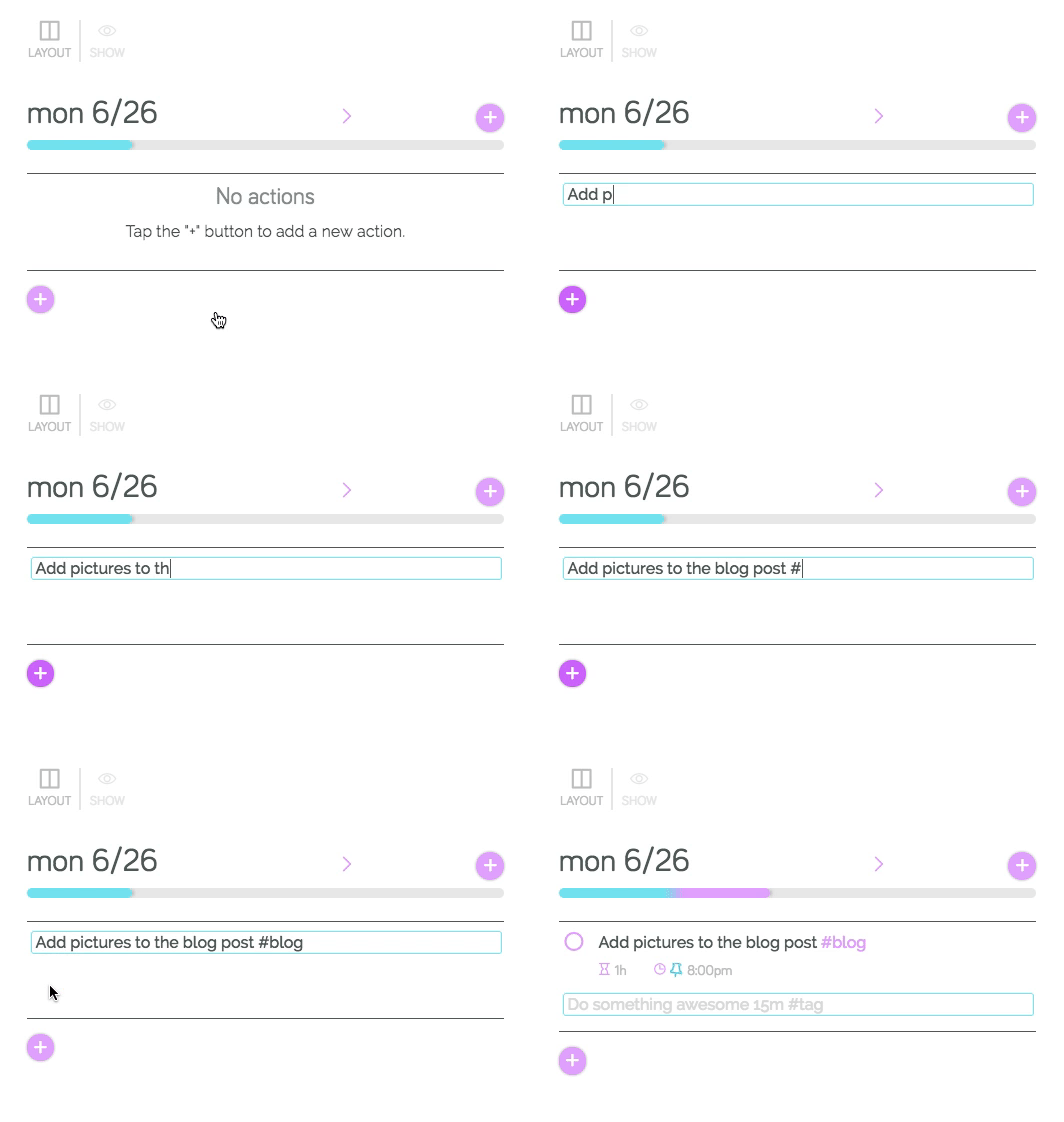
Use Focuster tags auto-completion to save time on adding tags.
Add due dates
Save time on adding due dates and other important information to your actions. Simply type “due” when adding a new action to your list:
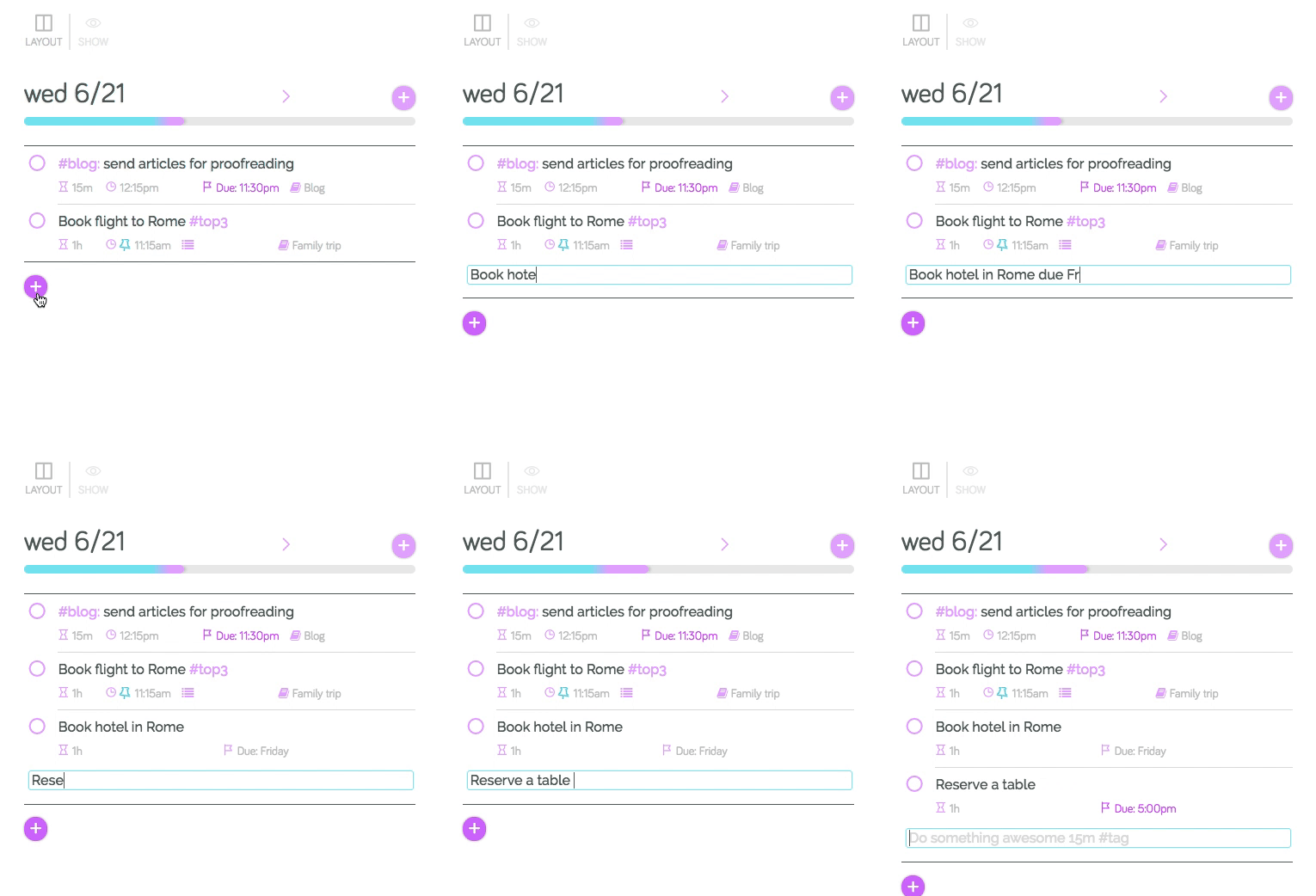
By the way, all actions with a due date from your Todo list will automatically appear in the Today list at the midnight when they become due, so you won’t miss them.
Find out more about due dates here.
Add notes
Quickly add all the details and comments to your action using a “///” combination. Simply insert these symbols before writing your notes and they’ll automatically appear in the Note field:
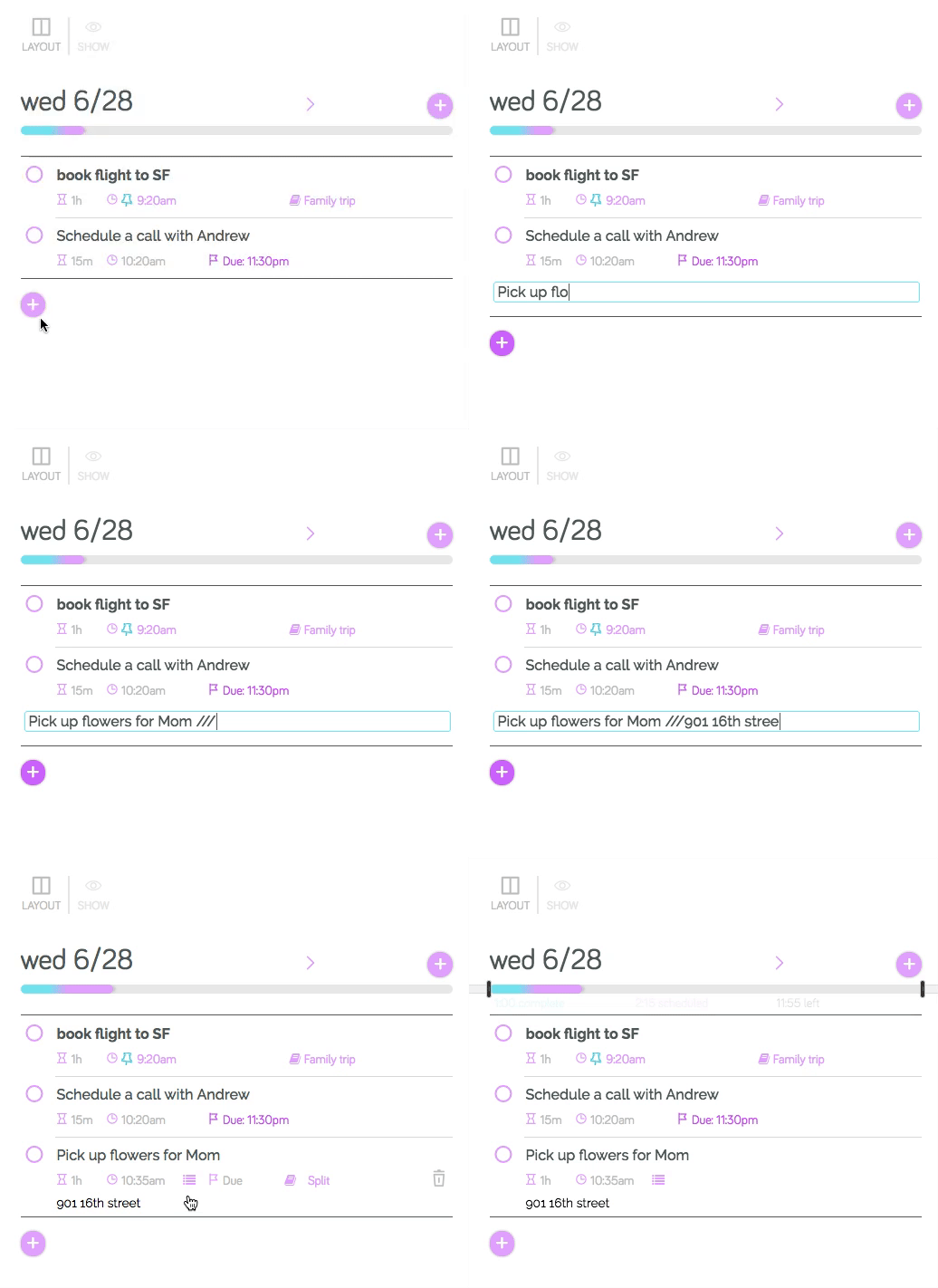
By the way, all these tricks work when you add actions both to your Todo and Today list.