Sign up and set up Focuster
Create your account
Go to the Focuster sign-in page and select Continue with Google or Continue with Microsoft. Use the account that holds your work calendar. The first time you sign in, Focuster creates your account and connects that calendar.
Focuster has no separate password. You always sign in with Google or Microsoft.
The setup steps
After you sign in for the first time, Focuster shows a short setup on top of your plan. It takes a few minutes.
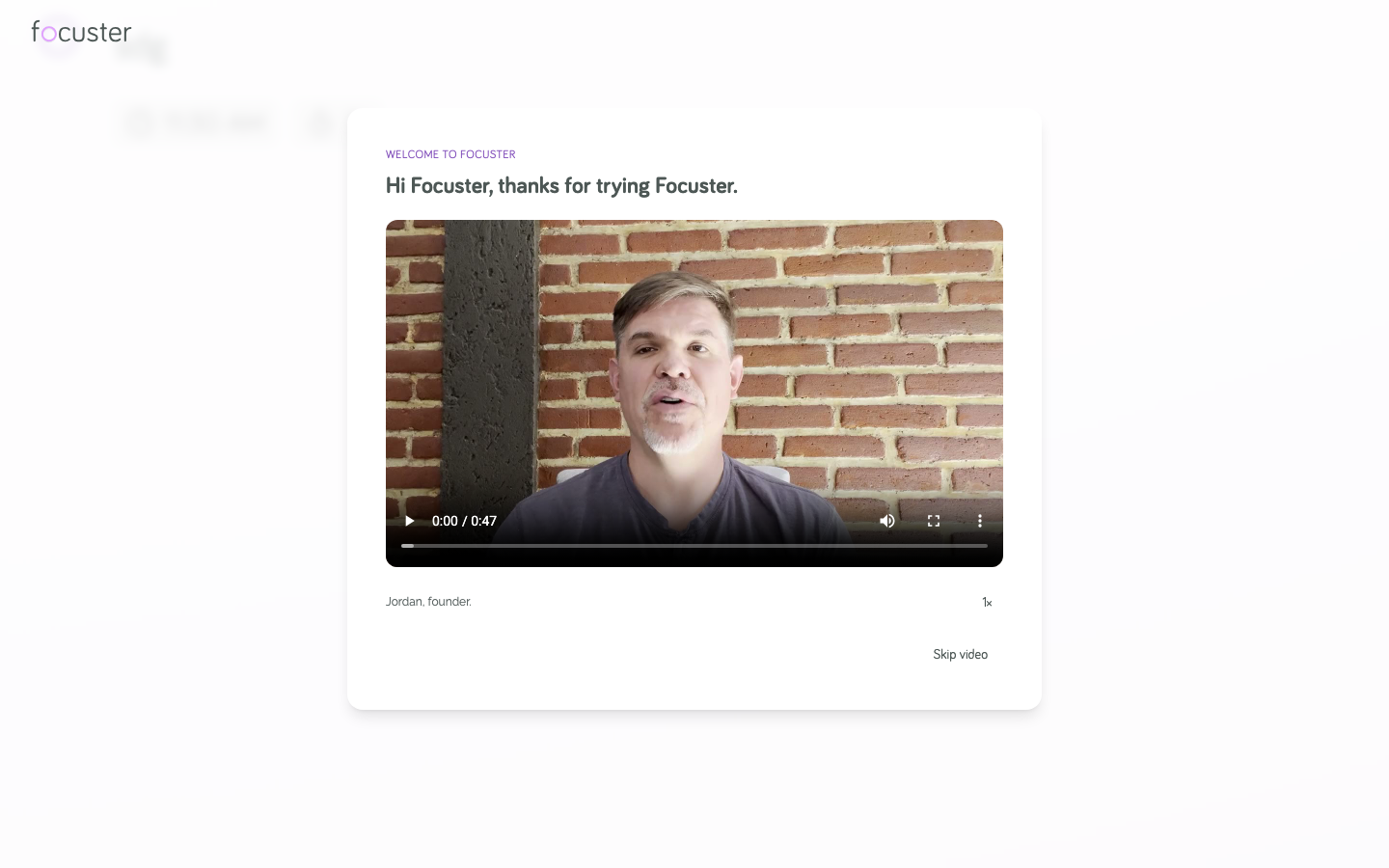
1. Welcome
A short video from the founder plays. Select Skip video if you want to go straight to the setup.
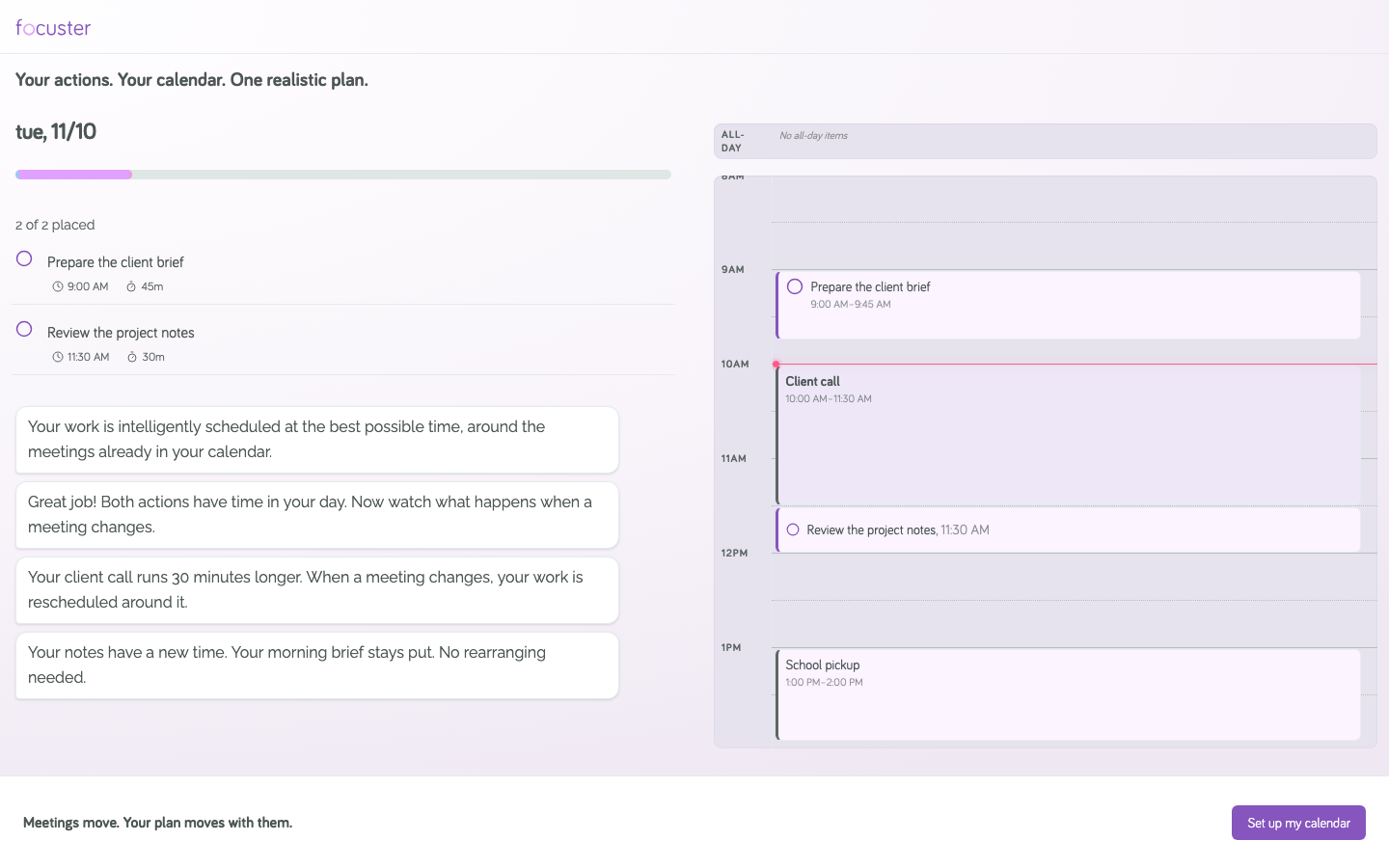
2. See how scheduling works
A small demo puts two sample Actions around the meetings on a sample day. Then a meeting runs long, and the plan changes to fit. The demo does not change your account. Select Set up my calendar to continue.
3. Add your other calendars
Focuster already has the calendar from your sign-in. If you use other Google or Microsoft calendars, add them here with Add Google Account or Add Microsoft Account. Focuster can only plan around busy time it can see. Select That's all of them to continue.
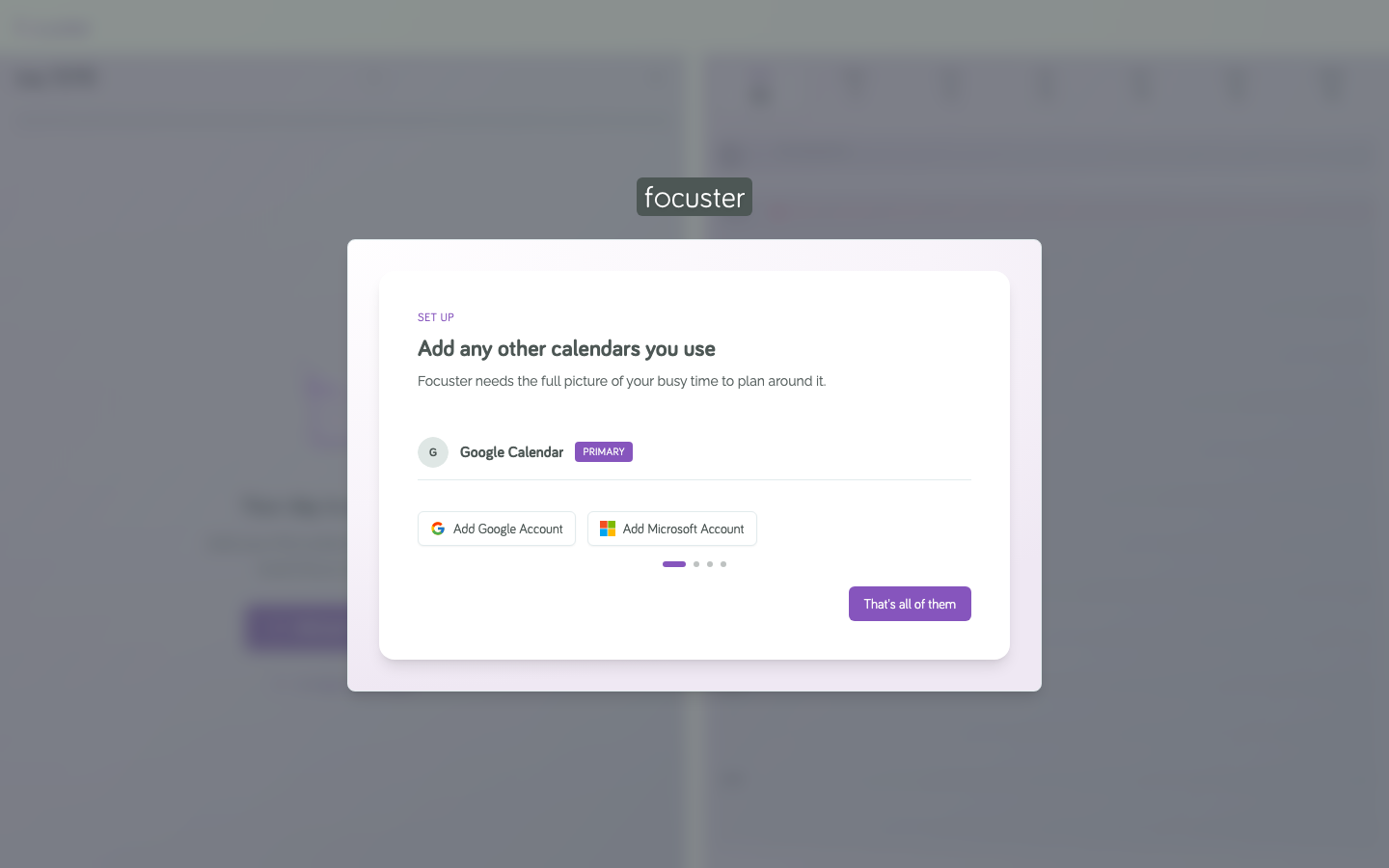
To add an Apple iCloud calendar, use Settings after the setup. See Connect your calendars.
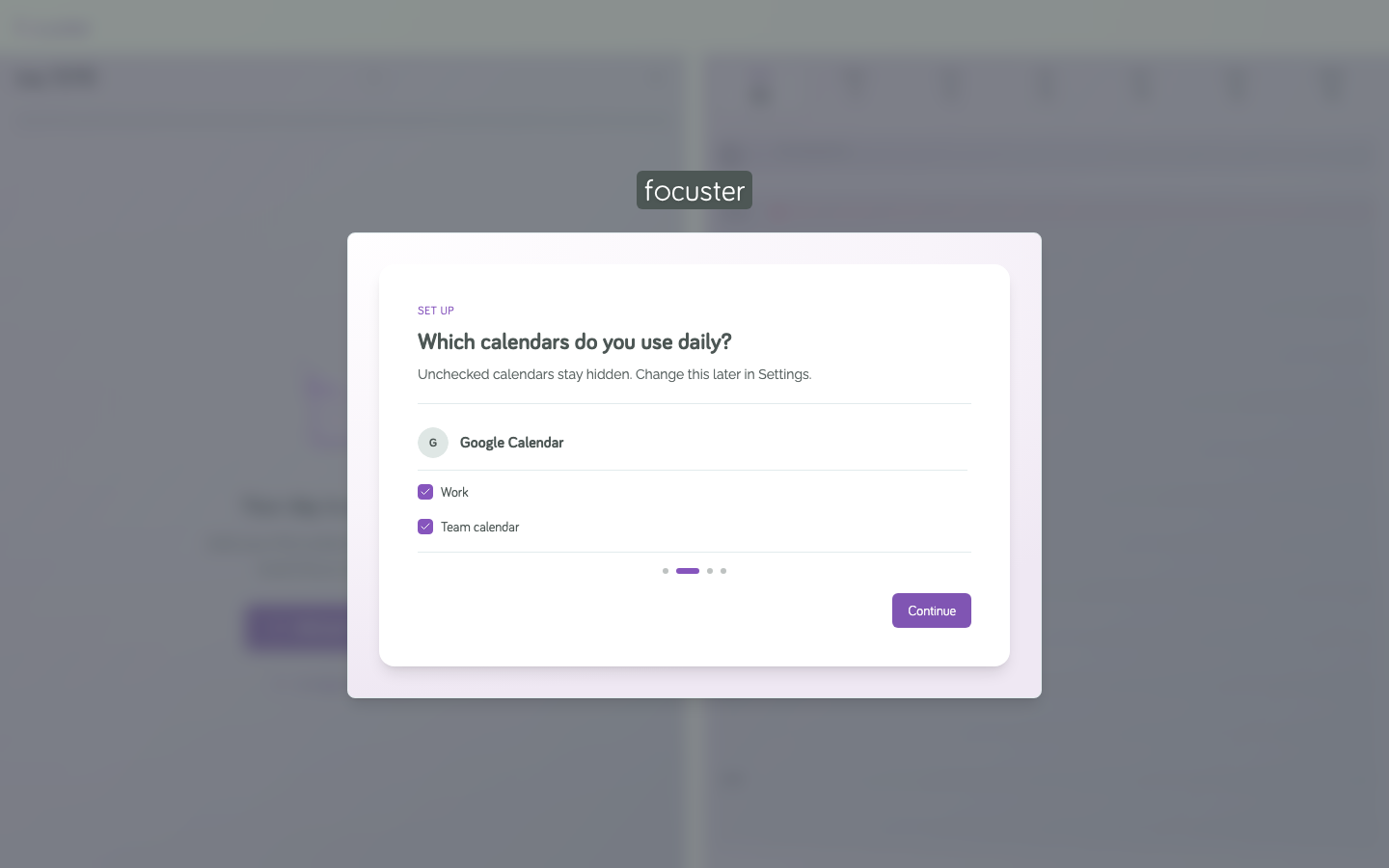
4. Choose the calendars you use daily
If you have two or more calendars, Focuster asks which ones you use every day. Clear the check box for a calendar to hide it. Hidden calendars do not block time. You can change this later in Settings.
5. Set your workday
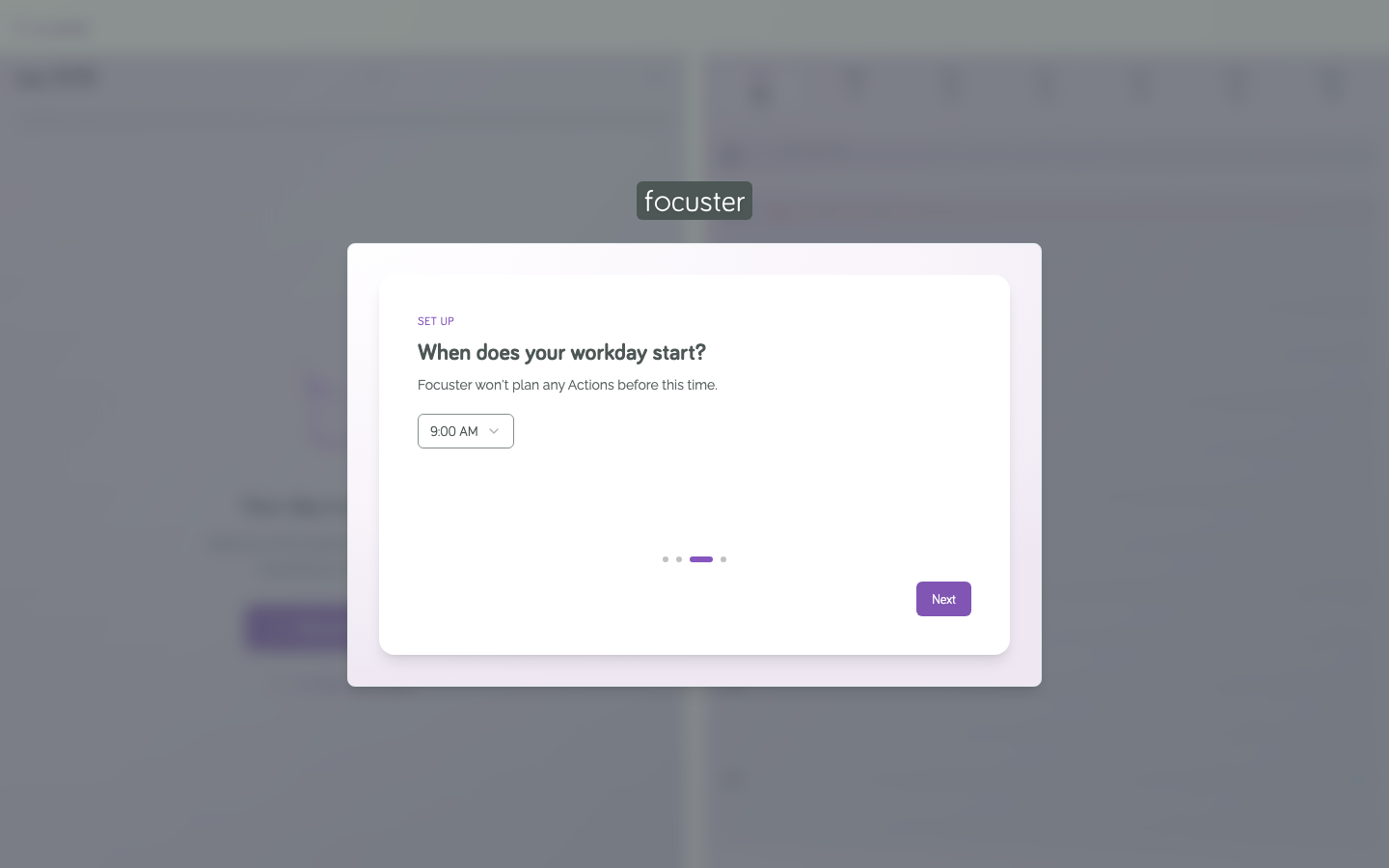
Choose when your workday starts, then when it ends. Focuster plans Actions only between these times. Anything you do not finish by the end of the day moves to the next day. Select Plan my first day.
6. Add your first Action
Type one thing you want to work on, then press Enter. You can add a duration, such as 1h or 30m. See Add Actions for everything you can type.
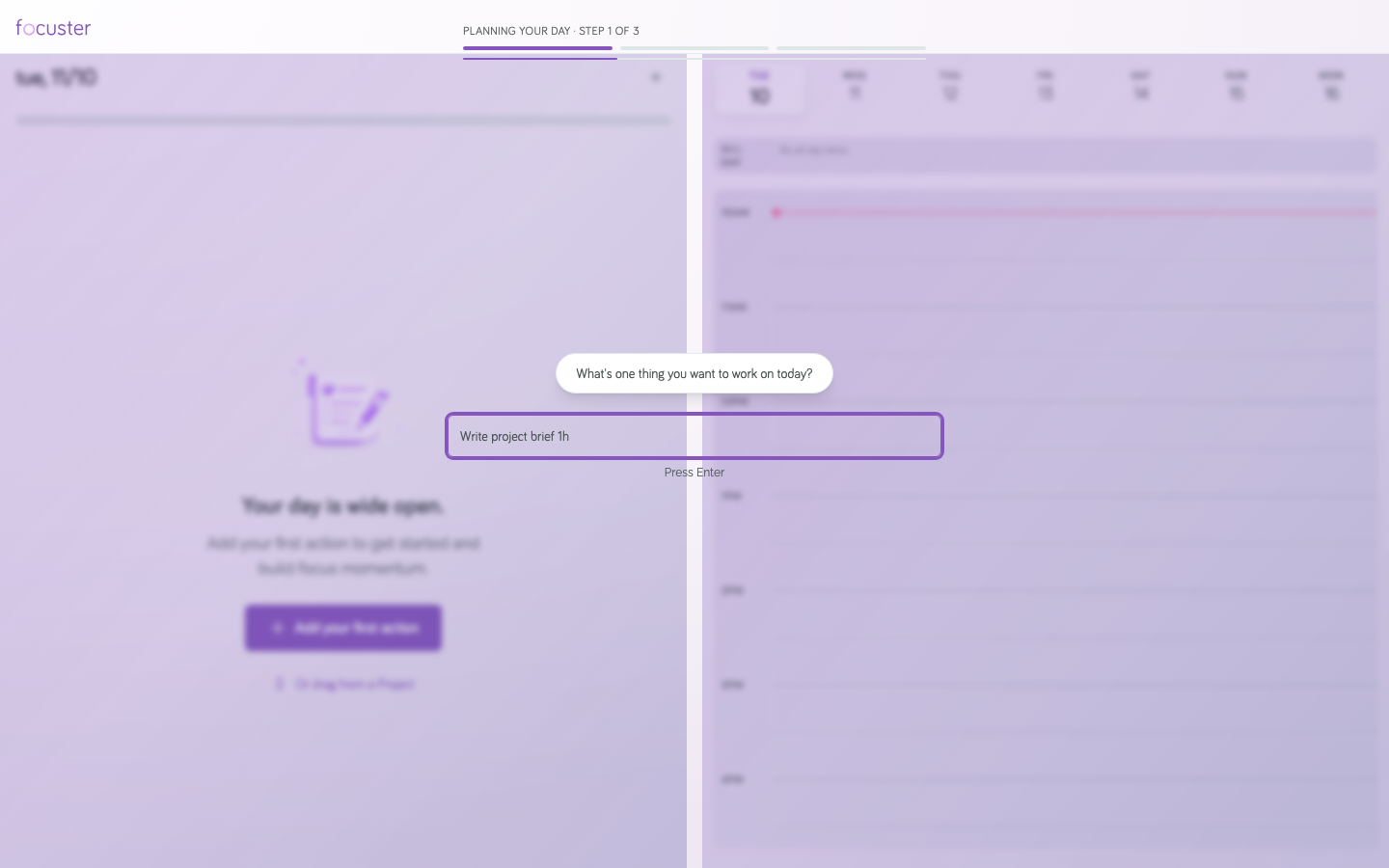
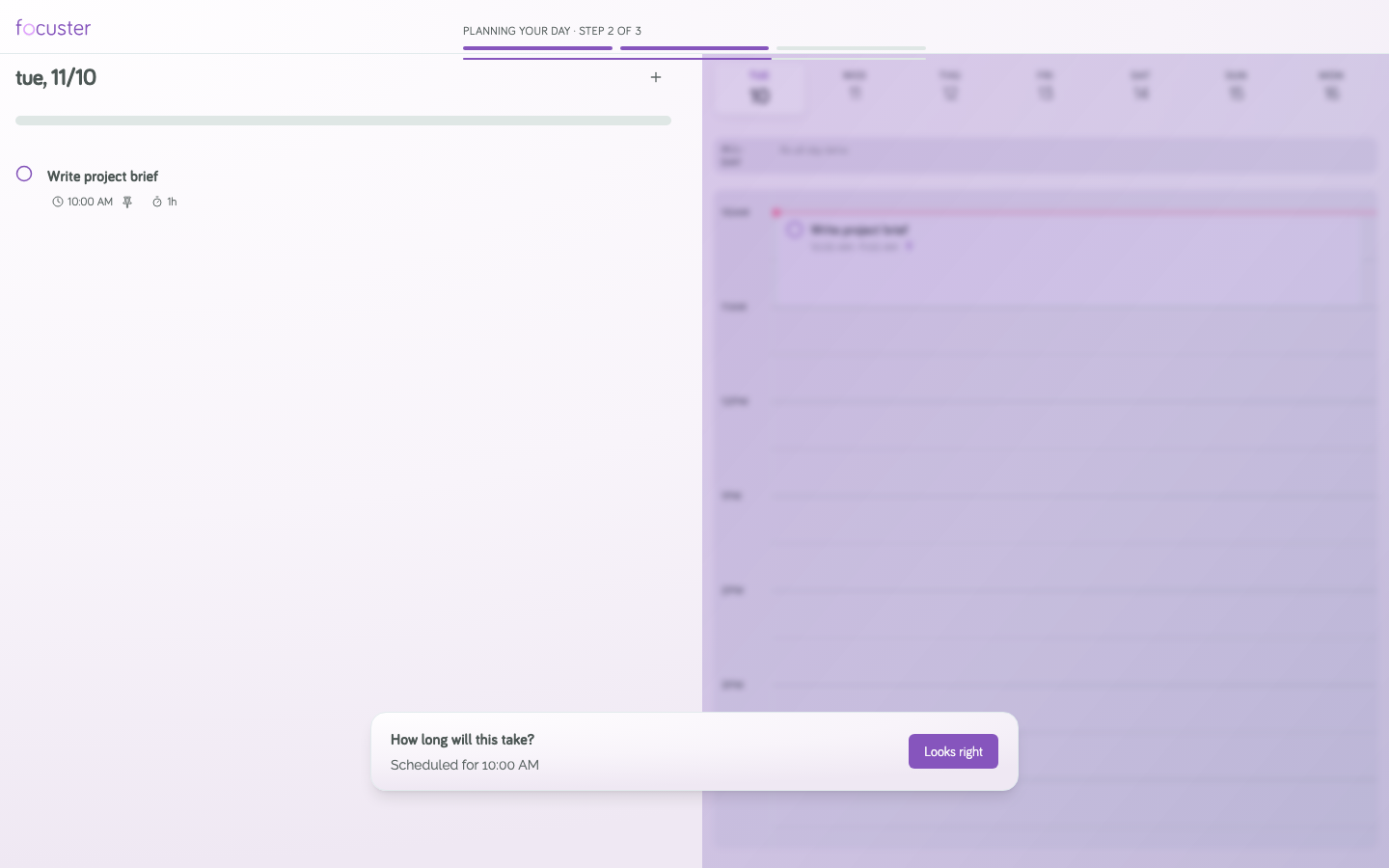
Focuster finds a time for it. Select Looks right to keep it.
7. Fill out your day
Add two more Actions and watch them fit around your meetings. The order of the list is your priority, so drag an Action up to do it sooner. Select Start my day.
8. Done
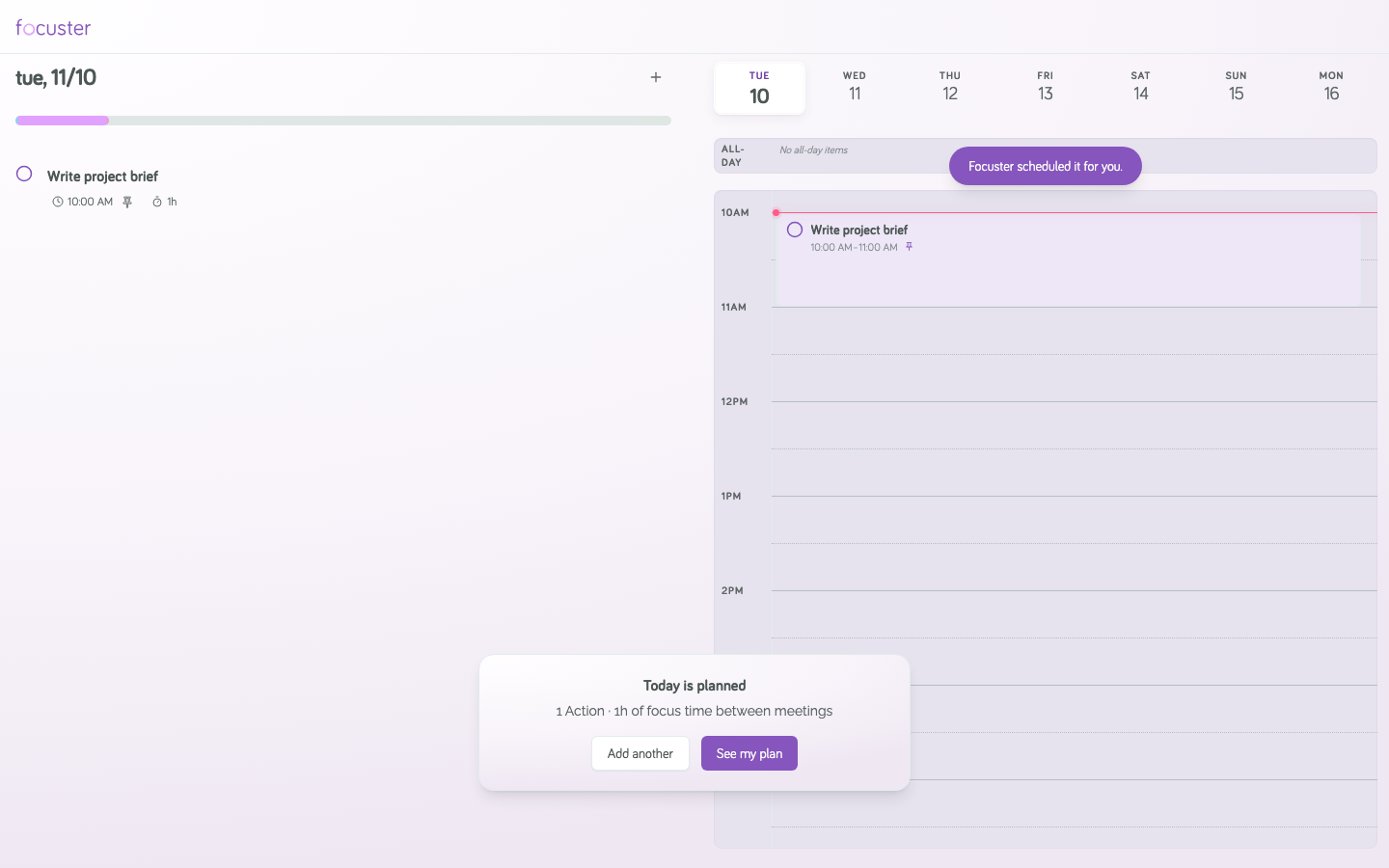
Focuster shows how your day is planned. Select See my plan to open your plan, or Add another to add more Actions.
Setup on your phone
If you sign in for the first time on a phone, the setup is shorter. It shows the demo, asks for your work hours, and asks for your first Action. Select Skip setup at any time to go to your plan.
Do the setup again
Go to Settings, find Onboarding, and select Restart onboarding.