Add Actions
Add an Action
On a computer, select + at the top of the Day List, or press C. Type the Action and press Enter. Press Escape to cancel.
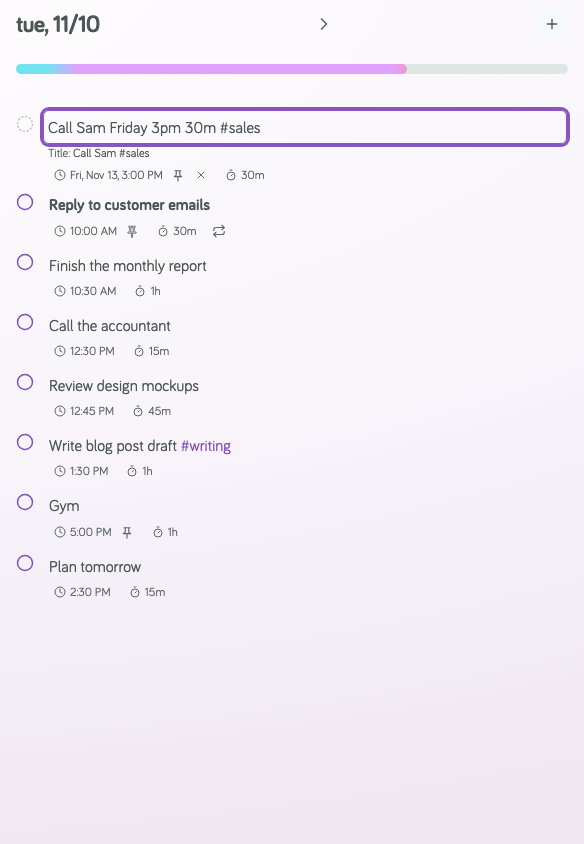
As you type, a preview under the box shows what Focuster understood: the day, the time, and the duration. If the saved title will be different from what you typed, the preview shows the title too.
You can paste several lines at once. Focuster asks if each line is a new Action.
What you can type
Put everything in one line. Focuster takes out the parts it understands and keeps the rest as the title.
| Type | Example | What happens |
|---|---|---|
| A duration | Write report 45m | The Action takes 45 minutes. |
| A day | Call the bank tomorrow | Focuster plans the Action for that day. |
| A time | Dentist 3pm | The Action is pinned at 3:00 PM. |
| A tag | Draft post #writing | The Action gets the tag writing. |
Duration
Put the duration at the start or end of the title. These all work: 30m, 45 min, 1h, 1 hour, 2.5h, 1:30 hrs.
A number inside the title is not a duration. In wait 2h before starting, Focuster keeps 2h as part of the title.
If you type no duration, Focuster uses your default duration. New accounts start with 30 minutes. Change it in Settings, under Scheduling.
Day
Type a day and Focuster plans the Action for that day:
today,tonight,tomorrow- A weekday, such as
Friday this weekend(Saturday) ornext week(the Monday that starts next week)in 3 days,in 2 weeks- A date, such as
September 18or9/25
Short weekday names, such as fri or wed, work only at the end of the title. This is because words like "sat" and "sun" are normal words too.
Focuster removes the day from the title. "Call the bank tomorrow" becomes "Call the bank", planned for tomorrow.
Time
Type a time to pin the Action at that time: 3pm, 2:15pm, 10:30a, 16:00. A pinned Action stays at its time. Focuster schedules the other Actions around it. See How scheduling works.
A time with no am or pm, such as 5:30, is in the morning. To get the afternoon, type 5:30pm or 17:30.
You can put a day before the time: Friday 3pm or 9/25 3pm.
If you type a time with no day, the Action goes on the day you are looking at.
Tags
Type # and a word: #writing, #errands. You can nest tags with a slash: #work/errands. Tags stay in the title, so you can see them.
Notes
Type /// and then your note. Everything after /// goes into the note, not the title.
Undo a day or time with Backspace
Sometimes a word looks like a day but is not, for example "Review the 3/4 report". If Focuster took a day or time that you meant as part of the title, press Backspace. Backspace gives back one part at a time:
- The first Backspace gives back the day. The day words go back into the title.
- The second Backspace gives back the time.
After that, Backspace deletes characters as usual. Press Escape to give back everything at once. Press Escape again to cancel the Action.
On your phone
Tap the round + button at the bottom right, or + at the top of Today. The New Action form has separate fields for the duration, the Intended Day and the List (Project). Focuster does not read days, times or durations from the title in this form.