Connect your calendars
Focuster plans around the events on your calendars. Connect every calendar that holds busy time, so Focuster does not put an Action on top of a meeting.
Where to find calendar settings
On a computer, open the account menu at the top right, select Settings, then select Calendars. On a phone, tap More, then Settings. Calendars is the first section.
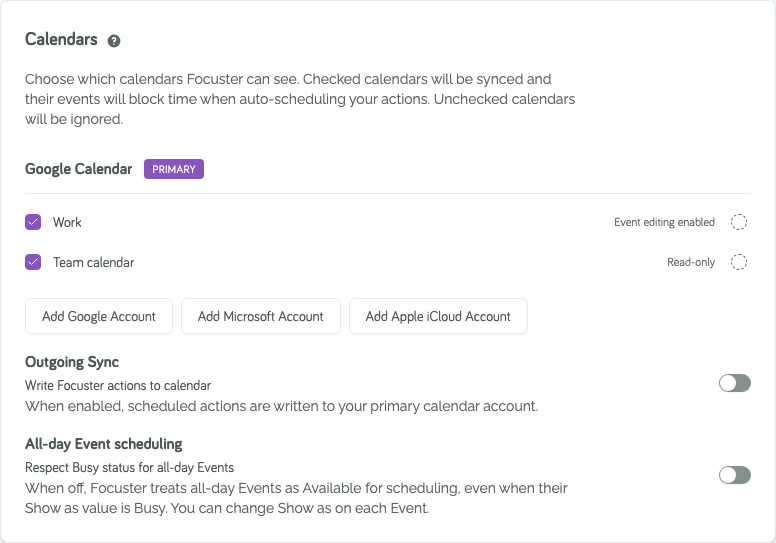
Add a calendar account
Your first calendar comes from the account you signed in with. To add more, select one of these:
- Add Google Account
- Add Microsoft Account (Outlook and Microsoft 365)
- Add Apple iCloud Account
Adding a second account needs Focuster Pro.
Apple iCloud
Apple does not let other apps use your normal Apple password. You need an app-specific password:
- Make an app-specific password on your Apple Account. Apple explains how in Sign in to apps with your Apple Account using app-specific passwords (opens in a new tab).
- In Focuster, select Add Apple iCloud Account.
- Type your iCloud email and the app-specific password, then select Connect.
Choose which calendars block time
Each account shows its calendars with a check box. Focuster syncs the checked calendars. Their events block time when Focuster schedules your Actions. Focuster ignores the calendars you clear.
Some events do not block time, even on a checked calendar:
- Events you declined.
- Events you marked as tentative.
- Events marked as Free (not Busy) in your calendar app.
- All-day events, unless you turn on Respect Busy status for all-day Events. With that switch on, an all-day event marked Busy blocks the whole day.
Put your plan on your calendar
Focuster can write your scheduled Actions to your calendar, so other people and other apps see your plan. Turn on Write Focuster actions to calendar under Outgoing Sync. This setting is off until you turn it on.
Focuster writes the Actions to a calendar named Focuster in your primary account (the first account you connected).
- On Google, Focuster makes the Focuster calendar for you.
- On Microsoft and Apple, Focuster cannot make a calendar. Make a calendar named
Focusterin that account first. Settings tells you if it is missing.
Focuster does not read the Focuster calendar back as busy time, so your Actions never block themselves.