How scheduling works
Focuster gives each Action a time on your calendar. It does this again each time something changes, so your plan always fits your day.
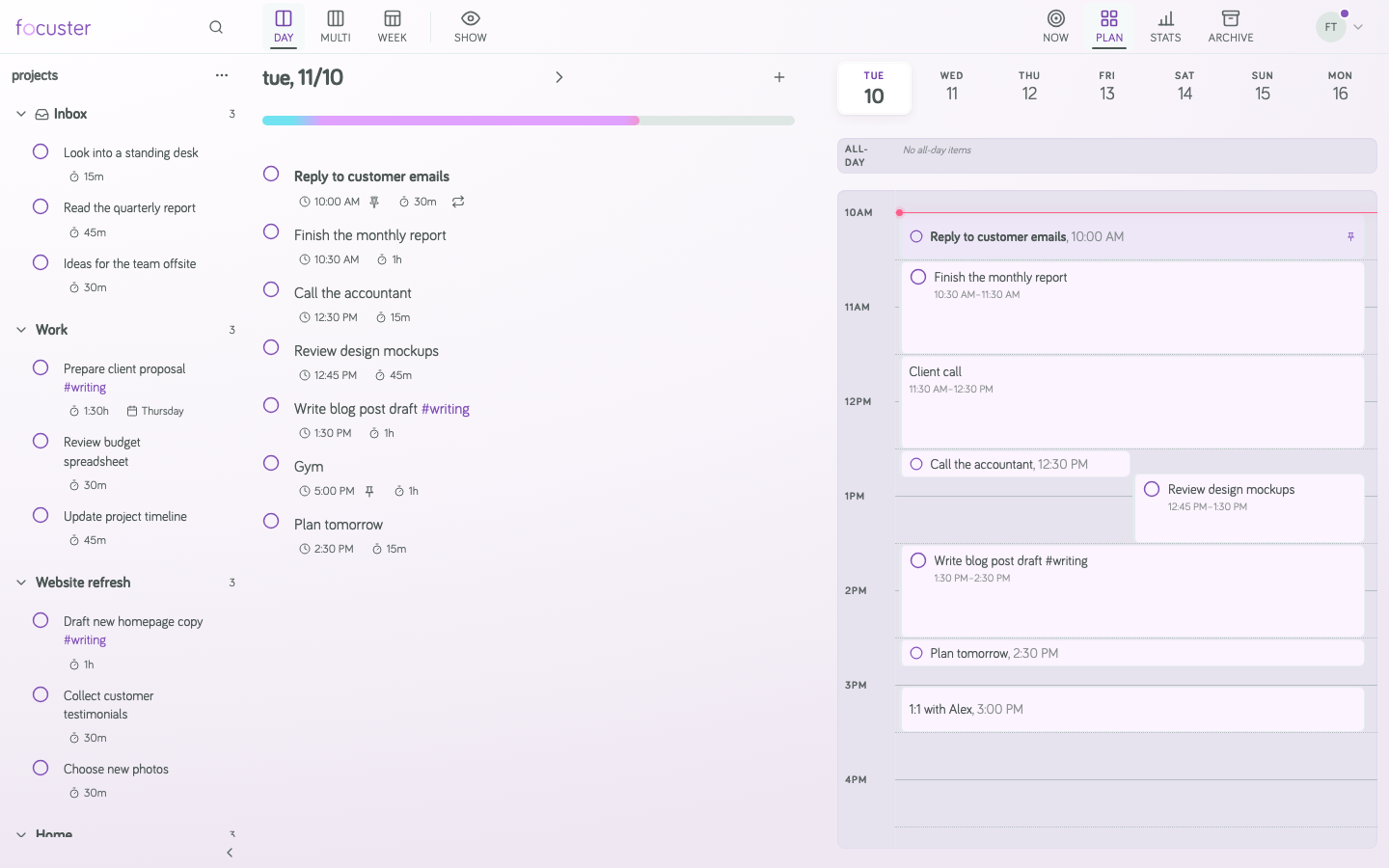
Intended Day
Each Action has an Intended Day: the day you plan to do it. When you add an Action to a Day List, or type a day such as tomorrow, you set its Intended Day. Actions in the Inbox or a Project with no day are not scheduled yet.
Free time
Your free time is your work hours minus your busy time.
- Work hours. Set them in Settings, under Scheduling. You can also drag the ends of the bar at the top of the Day List.
- Busy time. Events on your checked calendars, and Actions you pinned. See Connect your calendars for the events that do not count.
- Weekends. Focuster schedules on Saturday and Sunday only if Schedule on weekends is on.
How Focuster picks a time
Focuster takes your Actions in order: first by Intended Day, then by their order in the Day List. The Action at the top of the list goes first.
Each Action gets the first free time that is long enough for it. Focuster never puts an Action in the past. On today, it starts from now.
When a meeting moves, or you add, finish or reorder an Action, Focuster does this again. The Actions below the change move to fit.
When a day is full
If an Action does not fit on its Intended Day, Focuster puts it on the calendar on a later day. The Action stays in the Day List of its Intended Day, so you can still see it there. Its time shows in orange. If it moved 3 or more days, its time shows in red.
To fix a full day, move an Action to another day, make it shorter, or drag a more important Action higher.
Focuster looks up to 14 days ahead. If an Action does not fit in that time, it has no time on the calendar.
Pinned and autopinned
Pinned. You chose the time. You typed a time such as 3pm, dragged the Action on the calendar, or picked a time. A pinned Action has a filled pin icon. It stays at its time, and Focuster schedules other Actions around it.
Autopinned. Focuster chose the time and then locked it. When an Action is about to start, Focuster pins it so it does not move while you work on it. An autopinned Action has an outlined pin icon. Select the pin to unpin it.
Unfinished Actions
Each day, Focuster moves unfinished Actions from earlier days to today. They go into today's Day List, so you can plan them again.
Settings that change scheduling
Go to Settings, then Scheduling:
- Work Hours: the start and end of your workday.
- Schedule on weekends: plan Actions on Saturday and Sunday.
- Default Action Duration: the duration of an Action when you do not type one.
- Schedule all Actions: when off, Focuster schedules only your next 3 Actions.