Changelog
Updates, improvements, and fixes, newest first.
November 9, 2026
- If your computer is set to reduce motion, the scheduling demo now waits for you. You place each Action yourself and see each step, without the animation.
- Setup no longer asks where your Actions live today. You go from your calendars straight to your workday hours.
November 7, 2026
Start reminders now cover Actions that Focuster schedules into a Project's time block. Before, those Actions got no reminder, and the reminder could name a later Action instead of the one you were due to start.
November 6, 2026
- Due dates turn amber when an Action is 1–2 days overdue and red at 3 days or more. Due today stays neutral.
- Overdue and pushed chips show one icon. Hover a chip to see why it is colored.
- An Action too long for any block now says "Won't fit" instead of a date.
- Clicking a #tag in an Action title opens search for that tag.
- On mobile, the calendar fills the screen down to the tab bar.
- On mobile, tapping a day in the calendar list jumps to that day.
- On mobile, Now marks an Action overdue only when its due date has passed.
- The recurrence dialog buttons stay in place when you save.
- Tab from the completion circle moves to the title.
October 29, 2026
Actions that Focuster schedules into a Project's time block now show on the Day list for the day they are placed, under a "From Blocks" heading below your own list. Before, they appeared on the calendar but not in the Day list.
This rolls out gradually, starting with a small group of accounts.
October 27, 2026
In the dark purple theme, main buttons such as "Subscribe Now" now use white text on a deeper purple. The old dark text on bright purple was hard to read. Other themes look the same as before.
October 20, 2026
An AI assistant connected to Focuster can now move an Action to another List. It can also send an Action back to the Inbox. This works the same as moving it yourself in the app.
October 18, 2026
Deleting your account also removes Actions still being created or restored. This includes recurring Actions and Calendar Event mirrors.
October 17, 2026
When you set a time on a repeating Action, the first Action now starts at that time too. Before, only the later ones did. If you change the time, the first Action moves with it. A time you pinned yourself stays where you put it.
In the Plans window, purple now marks only the choice you make. Icons, section labels, the Most popular badge and the Pro upgrade title use neutral colors, so the Start with Pro button stands out in light and dark mode.
Calendar connections pause after repeated network or provider failures instead of retrying forever. Reconnect the affected account to resume syncing. A successful check when you sign in can also restore it. Brief outages still retry automatically.
When Focuster stops syncing a calendar account, a notice now tells you which account (or how many) and links to your calendar settings, so you no longer have to open Settings to find out. If the problem was temporary, Focuster also checks again about once an hour while you keep the app open, resumes syncing on its own and clears the notice.
On a phone with large text, a long word in your Now title no longer runs off the screen. The word now breaks across lines, so you can read all of it.
The More menu on mobile now has a Get help entry.
- Tap it to chat with us without leaving the app.
- If the chat does not open within a couple of seconds, it opens the Focuster help site instead.
Actions in your Inbox no longer leave it at midnight. They still move to today, but they stay in the Inbox. The Inbox now shows the same Actions on web and mobile.
If you delete your Focuster calendar in Google, Microsoft or Apple, Settings now says so.
- Focuster stops adding your Actions until the calendar is back. Your other calendars keep syncing.
- On Google, tap Recreate and Focuster makes a new one.
- On Microsoft and Apple, create a calendar named Focuster, then tap Check again.
When you change your calendar settings, Focuster reloads your calendar events. If a calendar blocks access, its events used to disappear during the reload. They now stay until access returns.
You can now add events to your Google Calendar from the mobile Calendar tab.
- Tap New event at the top of the Calendar tab.
- Choose the calendar, then set a title and time, or turn on All day.
- If Google does not accept the event, your draft stays open and you can retry.
- Calendars you cannot edit are not offered.
If you ticked off an Action in the moment after creating it, the check could disappear and the Action stayed open, with no message. A new Action is now ready for your next change as soon as it is saved, so completing it right away holds.
When you turn your phone sideways, the Calendar page now spans the full width of the screen. A blank strip no longer sits beside the header. Your Actions still stay clear of the add button.
On your phone, the day headings in the Calendar list now have a margin on the left. Before, the text sat against the edge of the screen.
Accounts with many calendars no longer lose the ones past the first page. If you connect a Microsoft account with more than ten calendars, all of them now show up in your calendar settings.
October 16, 2026
You can follow the welcome video with English captions. Playback speed, Skip video and Continue work as before.
Changing a scheduled series to repeat after completion asks for confirmation when upcoming Actions exist. Cancel keeps the original repeat mode without saving.
The change preserves completed and past Actions, and removes only the upcoming instances you confirmed.
Your calendar meetings stay hidden during the onboarding demo, so they do not overlap the sample plan. Your meetings return unchanged when the demo ends.
When you open or close an action's note, it slides down or up instead of appearing at once. If your system asks for reduced motion, the note fades instead.
CSV imports support up to 1,000 rows per file. Larger files are rejected before any Actions are created. Search queries support up to 256 characters.
If a search is temporarily limited, desktop and mobile show a message and let you retry without losing your query.
October 14, 2026
You can now sign up when another Microsoft account lists your address but has not verified it. An address already used by an existing account stays protected. So does one a Microsoft account has verified. In those cases, sign in with the existing account instead.
Microsoft meetings include the organizer when checking for other participants. When you can edit or delete a shared event, you choose whether to notify them.
You can close duration, schedule, due date, and Project pickers with Escape while their buttons have focus. Your Action editor stays open so you can keep editing.
Calendar sync retries outgoing writes when a rate limit lasts beyond a sync pass. Retries respect the calendar provider's waiting period and avoid overlapping unfinished writes.
Calendar sync counts read and write failures together. Successful reads no longer hide repeated write failures.
October 13, 2026
Your Calendar Events stay visible when a connected calendar temporarily fails to sync. A full sync clears removed or disabled calendars when it has other calendars to check.
Old cached pages are cleared reliably during app updates, reducing the chance of a blank screen.
Microsoft calendar sync reads all event pages before saving its progress, so busy calendars include meetings beyond the first 50 events. A temporary failure while reading a later page leaves the sync ready to retry.
Editing an Action title on mobile saves your latest text when you immediately press Enter or leave the field.
Calendar sync keeps its incoming position whenever a change fails to process, even after repeated failures, so the change can be retried. Other changes in the batch still import. Supplemental recovery lookups have limits for unavailable events. Moving an Action back to an earlier calendar time stays recognized, even when recovery is interrupted.
Closing an Action editor with Escape returns keyboard focus to the Action you opened on the calendar.
October 12, 2026
Opening a dated Week link, including a date selected on mobile, now shows that date's week and its scheduled Actions. Today and week navigation remain available.
After your trial ends, Settings explains which controls need a subscription. You can still view connected calendars and remove secondary accounts, disable existing browser push notifications, manage billing, or delete your account.
When you choose a time for an Action, it leaves its Block as part of the same edit.
Choosing Today schedules your Action around existing Pinned Actions. If you have chosen a time, moving to Today keeps that time.
When due or unfinished work joins Today, your existing Actions keep the order you chose.
The calendar's now line moves clear of pinned Action titles instead of striking through their text. The line and dot stay inside the time grid in light and dark themes.
Your Inbox has its own icon on mobile. Child Projects show their Action count and total duration, so you can see their remaining work.
Tap New Project on your mobile Projects page and give it a name. Your new Project also appears on desktop.
Actions you add from mobile Plan appear in All actions on desktop, including Actions planned for later days.
An unknown mobile link shows a recovery page when you are signed in. Choose Go to Projects to continue. If you are signed out, the link opens the sign-in page.
Adding an Action to a long mobile Day or Project list now brings the new row into view after the editor closes, above the navigation controls.
Tap the checklist count beside an Action to expand its items. Complete items without opening the Action editor.
Press Enter on the last item to add another. While editing the Action title, the details button replaces the checklist control.
If your session expires during account deletion, you see guidance to sign in and try again.
When adding an Action fails on mobile, the error tells you what to fix. Your entered details stay open so you can correct them and save again.
Action rows on mobile read more cleanly.
- A long title that wraps no longer runs into the time and duration line under it.
- Tags now show as small chips under the title, not as #text inside it. Tap the title to edit it, tags included.
After moving an Action up with the keyboard, ArrowDown returns it to its starting position. The selection no longer gets stuck on the middle row.
You can find help articles with your first search, including login troubleshooting, while the search index loads. You no longer need to type the query again.
Undoing a completion keeps your Action at its original time. Pinned and Autopinned Actions keep their placement on desktop and mobile.
An Action that has saved as complete no longer shows a completion error when later scheduling or calendar updates fail.
Desktop Stats shows a child Project's completed Actions and minutes even when its parent has no completed work in the selected range.
Changing an Action's pin now refreshes its calendar card immediately, including when its scheduled time stays the same.
Canceling Move to day keeps the Move dialog visible as it closes. Delete text no longer flashes.
Active Action editor toggles and the week calendar's Blocks control stay readable in light and dark themes, including while you hover over them.
October 11, 2026
- Choose Basic or Pro with monthly or yearly billing from the mobile plan screen.
- Mobile web opens Stripe checkout. iOS shows available App Store prices and Restore Purchases for App Store accounts.
- Accounts that need to switch billing providers receive guidance before starting a new purchase.
- Your iOS session can restore without a billing startup crash.
- Focuster opens on iOS 27 without crashing during native startup.
- Expired accounts show the plan screen without an extra error message.
If Focuster cannot confirm your Microsoft account, sign-in explains how to contact support. Repeated sign-in attempts cannot resolve this account mismatch.
You can delete writable Calendar Events from the mobile calendar editor. Deleting an Event also removes it from Google Calendar, Microsoft 365, or Apple Calendar. Read-only calendars explain why deletion is unavailable.
October 10, 2026
Choosing This Weekend on Saturday or Sunday schedules your Action for today. On weekdays, it selects the upcoming Saturday in your account time zone.
You can now drag the edge of the sidebar or the calendar to make it wider or narrower.
- Drag a pane past its narrowest size to close it. Drag it back out, or click its show button, to reopen it at the same width.
- Double-click an edge to return that pane to its default width.
- With the keyboard, focus an edge and use the arrow keys to resize. Press Enter to close or reopen the pane.
- Each device remembers its own widths, so a wide monitor and a laptop can each keep a layout that fits.
You can now give a scheduled repeat a time of day, like every Tuesday at 5 PM.
- On mobile, choose On schedule, pick a rule, then set At what time?
- Each repeat after the one you set it on is Pinned at that time in your timezone.
- Leave the time empty and Focuster schedules each repeat for you, as before.
An Action set to repeat a number of days after you complete it now comes back. When you complete it, the next one appears that many days later. If you set a time, the next one is pinned at that time. If you reopen the completed Action, the next one goes away again.
A repeating Action that is Pinned to a time now takes its place in each day's list by that time.
- It goes after the Actions that start earlier, and ahead of later or unscheduled ones.
- Before, each new repeat landed at the bottom of the day, or where the original sat in its own day.
- Repeats without a time keep their current place.
Going back from the Tags page on mobile no longer reloads the app.
- Back from the Tags list slides back to your Projects.
- Back from a single tag slides back to the Tags list.
It now works the same way as Back on a Project.
Mobile Settings is easier to use.
- The Google, Microsoft and Apple connect buttons are now full-width rows with space between them.
- The Connect and Cancel buttons in the Apple Calendar sign-in no longer touch.
- The timezone list shows a checkmark next to your current timezone.
Keyboard focus now goes back to where you started.
- Press Escape in the Add Action box, and focus returns to the control that opened it.
- Press Escape or Enter while renaming a List, and focus returns to the control that opened the editor.
You no longer lose your place and start again from the top of the page.
The Edit Event screen on your phone now does more.
- Delete an event, or remove an invitation from your calendar. If other people are invited, you confirm first and they are told.
- See which calendar the event is on, next to the provider name.
- See a notice when the calendar account stops accepting changes. Your edits stay on the screen until you reconnect.
- In the Calendar day view, tapping an event you can edit opens Edit Event. Events you cannot edit still open read-only.
The Upcoming section on the Now screen now starts collapsed. You see a faded peek of your next Action.
- Tap Upcoming to slide it open and see all your upcoming Actions.
- Tap the Upcoming header again to collapse it.
October 9, 2026
On your phone, tapping a calendar event in the List used to open the Edit Action screen. That was the wrong screen for an event.
Now it opens an Edit Event screen. You can change the title, date, times and notes. You can also set Show as to Busy or Available.
Events you cannot edit open in a read-only view.
Events on your day and week calendar are now flat, softly tinted blocks instead of floating white cards.
- Overlapping events sit side by side in their own day column.
- When a group is too crowded to read, it folds into one "3 events" chip. Open it to pick an event.
- Only the event you are dragging casts a shadow.
October 8, 2026
An Action planned for one day but scheduled for a later day shows its start time in yellow or red.
Before, an overdue Action lost that colour and showed grey. Now the start time keeps its colour. The due date shows its own colour beside it.
On your phone, the round chat bubble sat on top of the More tab. You could not tap More.
The bubble is now hidden in the mobile app. The More tab works again.
When you open a calendar event with a long description, the whole editor now stays on screen. If it does not fit above or below the event, it opens beside the event instead. Before, its title could run off the top, or its Save and Delete buttons off the bottom.
The trash icon in the action editor is now always visible. Before, it stayed hidden until you hovered the bottom of the editor.
Scroll to the end of your day. The calendar now stops at the last hour.
Calendar cards are quieter now.
- Scheduled Actions no longer carry a clock badge. A card on the calendar is already scheduled.
- Completed Actions show the same check as your Day List, with no second badge.
- Overdue Actions show a small pink calendar icon in the top-right corner. Hover it to see the due date.
- The time sits under the title, so taller cards read more evenly.
Editors that open on the calendar now fit the calendar pane.
- A tall editor in a short window scrolls instead of running off the bottom.
- The completion circle, pin buttons and week arrows are easier to hit.
- The line through a completed event shows in dark mode.
- Screen readers now announce what each calendar popup is for.
October 7, 2026
When you move, shorten or delete a Time Block, your Actions inside it now follow right away. Before, they could stay at a time with no Time Block under them.
- Your existing Actions keep their order when you return to the updated app.
- Your first Google sign-in carries forward your selected calendars and custom calendar colors.
- Older calendar events keep their connection to your Actions during sync.
Connected AI apps can now create, change and delete Time Blocks that repeat each week.
They can also edit or remove a single occurrence. The rest of the series stays the same.
October 6, 2026
Connected AI apps can now see, create, move and delete your Time Blocks. They can also turn Auto Schedule on or off for a List.
October 5, 2026
In the multi-day view, an Action can land on another day when you add it. The message then offers "Show me".
Before, "Show me" changed the day of the column you were typing in. The days ended up out of order, with one day shown twice.
Now "Show me" scrolls to the day that holds your Action. Every other column stays as it was.
Open Tags from your main browse screen or More → Tags on your phone. See all your tags across Projects, then drill down into matching Actions. Choose a tag to see matching Actions, including nested tags. Tap an Action to open its Project.
You can open Stats from the More menu on your phone. Choose a date range to review your completed Actions and time spent, with mobile navigation available throughout. Charts fit your phone, with readable rhythm, habit and planning hygiene summaries.
You can rename a Project from its mobile detail screen. Tap the pencil, enter a name, then tap Save.
Cancel discards your edit. If a name is rejected, your edit stays available with an explanation.
Open Projects to see your top-level Projects in their saved order. Tap a Project to see its sub-Projects and Actions. Create named child Projects from the menu beside a Project. Move Projects under another parent or back to the top level while keeping their Actions. Unavailable parents show why they cannot be selected.
You can choose a date from the mobile Plan heading to see its Actions. Use the arrows to reach earlier dates or dates beyond two weeks. Tap Today to return to the current day in your profile timezone.
Tap the Checklist row in the mobile Action editor to open a dedicated screen for adding, editing, completing, and restoring checklist items. Press Enter on the last item to add and focus a blank row. Empty rows are discarded on Back. Swipe left to delete an item. Checklist edits save immediately for existing Actions; new checklist items are saved with the new Action. Your checklist stays with its Action when you switch between mobile and desktop.
Mobile Calendar now has a List / Calendar switch. It opens in List mode and remembers your choice in this browser. Calendar remembers its selected day when you return from List. The floating + button stays available, with space around the content so it leaves row times clear. List keeps its existing upcoming view.
Touch and hold an Action for half a second, then drag it to change its time. Tap an item to open its details. Use the day buttons to view another day.
October 4, 2026
On a narrow window, a zoomed-in browser or a large default font, Focuster now folds the calendar and sidebar away instead of squeezing them, and puts them back when there is room, without changing what you chose to keep open. Every page has its own title in your browser tab, and you can turn off single-key shortcuts in Settings → Appearance.
Blocks use a quiet List color tint and a thin edge, so your Actions stay easy to read. Uncolored Blocks use a neutral tint. A Block spanning several days shows its name once.
Your browser warns you before reloading or leaving while requests are still in progress. Wait for requests to finish to avoid losing changes.
Now shows Actions scheduled in today's Blocks, even without an Intended Day. You can see your current and upcoming block work on desktop and mobile. Actions scheduled in tomorrow's Blocks stay out of today's Now view.
You can write “qtr,” “qtrs,” “weeks,” or “quarters” with a time to keep the date you mean; quick-add preserves the rest of your action title.
On your phone, the Today plan now shows when each Action starts and how long it takes, and groups work that moves to tomorrow or arrives from yesterday, so you can see whether your day fits. The + button understands what you type, like "call Sam tomorrow 30m", and tells you where the Action landed. Checking off an Action shows an Undo, and the checkbox is easier to tap.
Calendar sync recovers from interruptions without repeating completed sync or scheduling work. Your latest calendar updates stay intact.
The sign-in and legal pages now follow your theme in light and dark mode, and load less code, so they appear faster. If Focuster updates while a tab is open, it reloads quietly instead of showing an error. The "timezone changed" notice stays dismissed once you answer it.
Keyboard focus is easier to see on calendar controls, notices, inline editors, and dialog close buttons. Work-hour handles also show a clear focus indicator when you reach them with the keyboard.
Empty pages explain their purpose and offer a next step, so you can start planning with confidence. Search links with a query open that search directly.
Calendars that keep failing to sync pause after repeated attempts. Settings explains the pause and offers Reconnect so you can try again. Your other connected accounts keep syncing.
Your Action changes retry after a temporary calendar sync failure. Actions that already synced keep their existing calendar events.
Calendar sync resumes where it stopped after an interruption. Completed calendars stay synced while remaining calendars catch up.
Calendar Actions show distinct markers for done, scheduled, and overdue work. List and calendar colors stay on the edge, so they cannot be confused with Action status.
Shift-click an Action to select it. Shift-click another Action to select a range. You can move selected Actions to another day or delete them together. Click an Action normally to keep editing it. Shift-click closes the editor and keeps your changes. Click blank space to clear your selection. Recurring title changes still ask which occurrences to rename before the editor closes. Starting to drag an Action clears your selection. Selected Actions show one selection outline after Shift-clicking, including when closing the editor in Inbox.
When deleting recurring Actions, choose selected occurrences or include future occurrences. Moving a recurring occurrence changes that occurrence. Moving the first occurrence keeps its repeat rule and may shift future generated dates.
After a bulk delete, click Undo in the message that appears to bring the Actions back. If a bulk operation stops partway, the message says how many Actions changed. The Actions that did not change stay selected, so you can try again.
October 3, 2026
If the support assistant cannot search help articles, your question goes to our team for a personal response.
The Scheduled Time menu now shows everything in one place.
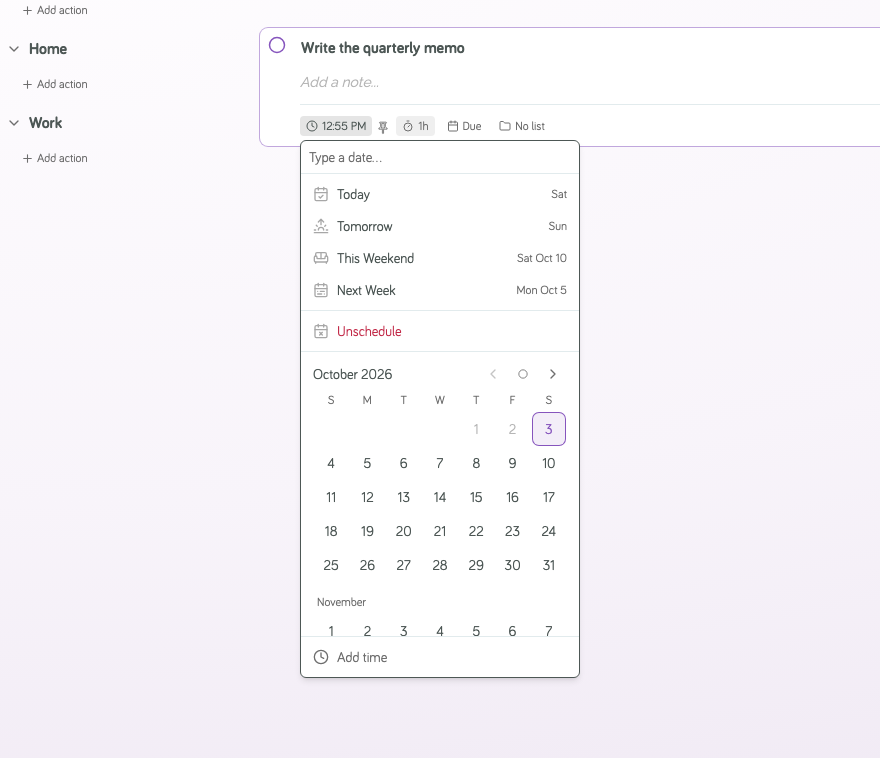
- The calendar is always open. Scroll through the months to pick any day.
- Each quick option shows the day it lands on, such as "Next Week: Mon Oct 5".
- A time field sits at the bottom. Type "2pm" to pin the Action at that time. Clear it to let Focuster place the Action again.
- Type a date such as "dec 25", and the calendar jumps to that day before you confirm.
- An Action planned more than two weeks out shows its day, such as "Fri Dec 25". Focuster schedules it when the day is within two weeks.
- The Due Date menu works the same way.
You see an error message if pausing or resuming a Project fails in the sidebar or Project pane.
The onboarding demo moves through each explanation sooner. A brief color pulse highlights Actions as they land and calendar changes. With reduced motion enabled, the demo shows the final plan without pulses.
You can connect Google and Microsoft accounts directly during setup. Each provider has a visible button with its logo.
Now shows the earliest unfinished Work Session for each split Action scheduled for today. Each Action appears once. Completing a Work Session brings the next one into view.
New Actions on mobile keep the repeating settings you choose. This works for schedules and repeats after completion.
Focuster on your phone now uses the theme and light or dark mode you choose in Settings, and the same fonts as the web app. It shows one prompt at a time instead of stacking them when you open it, keeps the + button clear of your last item, and you can sign in with Microsoft.
Swipe Delete asks whether to delete only the selected Action or this and all future occurrences. If deletion fails, you see an error and can try again.
Your MCP client receives only one access grant when it sends simultaneous requests with the same authorization code.
When you delete your account, connected AI apps lose access immediately. Pending connection approvals also expire.
Your iCloud calendar choices and colors survive temporary access interruptions. Other accessible calendars keep syncing while access to a shared calendar is denied.
If you never set a default duration, a new Action now gets 30 minutes. Settings already showed 30 minutes, but new Actions got an hour.
If you chose a default duration in Settings, nothing changes.
Your current Action keeps its Intended Day and completion state when you set it to repeat after completion. Completion-based series offer whole-series deletion so you cannot accidentally change how they repeat.
In the Ocean Blue and Fresh Mint themes, an open Action no longer looks overdue: each theme now has its own color for open and scheduled work, kept apart from the colors for done and overdue. Secondary text is easier to read, focus outlines show on every control, and pop-ups fade instead of zooming when your system asks for reduced motion.
After checkout, your subscription refresh waits for your account to sign in. You see a confirmation only when the refresh succeeds. If the refresh fails, you see an error with a next step.
October 2, 2026
You can delete your account from mobile Settings. After deletion, you are signed out and see a confirmation.
Your List counts and tag results no longer include hidden copies of completion-based repeating Actions.
September 30, 2026
- The first onboarding screen now plays a short welcome video from the founder.
- You can change the playback speed, or skip the video at any time.
September 29, 2026
Upcoming now uses the full width beside the sidebar, so you can see more days at once. Your calendar returns when you leave Upcoming.
Unfinished Actions keep your drag order when they roll into the next day.
Type “every day” or “every weekday” when adding an Action to set its repeat schedule. A choice you make in the Repeat field takes priority.
Your screen reader now announces the Repeat control in the New Action editor.
Recurring Actions no longer create duplicate entries in search results or Lists. You can still edit each occurrence's repeat settings.
Error pages now use your chosen theme, with readable text and clear buttons in light and dark mode.
- Saving an Action note keeps the note open without a brief collapse.
- Creating a sublist opens its parent when the new sublist appears.
When iCloud denies calendar access, Focuster detects the connection problem instead of treating your calendars as empty. If iCloud denies only one shared calendar, your other calendars keep syncing.
Deleting your account closes your session, and that could happen before Focuster heard back that the deletion had finished. Focuster now confirms the deletion after the session closes and tells you your account was deleted.
If the deletion fails, you stay signed in and see an error message. Before, you were signed out with a message saying the account was deleted.
Deleting a completion-based recurring series removes all its Actions. The delete dialog no longer offers "Delete Only This Action" for the series template, and a delete that fails now shows an error instead of failing silently.
Your pending calendar updates resume after a service restart, so changes are less likely to wait for another update.
Calendar controls now use your browser language when available. Unsupported languages use English.
You can request Actions within a date range or limit how many the API returns. A date range returns Actions in start order, so asking from now for one Action gives you the next one to start. Connected tools can load faster with smaller responses.
September 27, 2026
The rebuilt beta makes planning faster and gives you more control over each Action.
- Break an Action into a checklist and keep its open state between visits.
- Drag Actions within a List, between Lists, or onto a day.
- Format Action notes with Markdown.
- Repeat an Action a set number of days after you complete it.
- Organize related work with nested Lists.
- Use the redesigned mobile app with automatic dark mode.
- Follow the guided first-day setup to build a useful schedule sooner.
September 25, 2026
- If your Google Workspace admin blocks Focuster, sign-in now says so and tells you to ask your IT team.
- The Microsoft admin-approval message now includes a ready-to-send request for your IT admin.
- Signing in with Microsoft no longer changes the email address on your Focuster account.
- Fixed a problem that could disconnect a Google calendar and make you reconnect it.
- A Microsoft calendar that has lost access now asks you to reconnect, instead of retrying forever.
- Renaming your Focuster calendar no longer creates a second one or stops your events from updating.
- All-day events from Apple Calendar now show up instead of being skipped.
- Microsoft 365 meetings you declined no longer block time in your day.
- Deleting your account now also removes the events Focuster added to your calendars.
- If your email was unverified when a calendar connection broke, you now get the alert once you verify it.
- Billing emails, like upcoming-invoice notices, no longer arrive twice.
- The Terms and Privacy pages now cover Microsoft sign-in, Microsoft and Apple calendars, and the free trial.
Settings now opens with a list of sections — Appearance, Scheduling, Notifications, Calendars, Integrations, and Account. Pick one to see just that section, instead of scrolling through all of them at once.
- Fixed a problem that could stop overdue Actions from rolling forward to today.
- A newly added Action no longer takes the best time slot from Actions you already ranked.
- New occurrences of a recurring Action now keep its place in the day, instead of dropping to the bottom.
- Actions already in a List now move into its first time block when you create one.
- Changing an Action's repeat setting in the Edit Recurrence dialog now saves.
- Editing or renaming a recurring Action now defaults to changing only this one, and each choice is explained.
- Typing a time that has just passed now keeps the Action on today.
- "Action completed" now appears only after the completion has saved.
- If a drag can't be saved, you now see a message instead of the Action silently snapping back.
- Selecting text in an Action you're editing no longer starts dragging it.
- Lists load faster on long-standing accounts, and the Delete List confirmation now counts every Action it will delete.
- You can now rename or pause a Project right from the sidebar menu, not just from the Projects view.
- The sidebar now says "Project" to match the Projects view.
- Type a day in Quick Add, like "next Wednesday", and the Action lands on that day. Press Backspace to turn it back into words.
- A new "What's new" item in your account menu lists recent changes. A dot tells you when there's something you haven't read.
- The List color picker has refreshed presets and a custom color option.
- Onboarding gives your first Action its own screen and names the day it will land on.
- You can check and adjust how long that first Action will take.
- Onboarding invites you to add more Actions, and shows that their order sets their priority.
- It ends with a Finish card that shows your planned day and your focus time.
- Your workday start and end now have separate screens.
- With no calendar connected, the button now reads "Continue without a calendar" instead of claiming one was added.
- Recurring Actions now show a repeat badge on mobile, including on the Now screen.
- Nested Lists now show under their parent List instead of in one flat list.
- The Lists screen shows a helpful message when you have no Lists yet.
- Screens no longer flash an empty state while your data loads.
- Upcoming items on the Now screen now share one size and even spacing.
- Turning a calendar on or off in Settings works again.
- Settings has clearer headings and grouping, and account deletion now sits apart from everything else.
- Each Action row shows one urgency color, and Actions due tomorrow no longer look urgent.
- List color presets no longer include colors that look like overdue or warning states.
- Page titles across the app now share one style.
- A collapsed sidebar now has a clear Show sidebar button.
- The Delete List confirmation now names the List you're deleting.
- An unknown link now shows a Page not found page instead of silently redirecting.
- Keyboard focus is now clearly visible everywhere, and four low-contrast text colors are fixed.
- Purple text on tinted backgrounds is easier to read in dark mode.
- Hover highlights on Action chips are clearly visible again in light mode.
- Colored List headers and the sign-in page show their headings in the intended color again.
- Checklist items keep the same font while you edit them.
- Screen readers can now tell notifications and account notices apart.
- Toasts that appear after a sign-in popup now dismiss, and their close button works.
- Fixed an error screen that could appear while a snooze notice was showing.
The Archive now opens instantly, even on an account with years of completed Actions. It shows your most recently completed Actions first, and a "Load more" button brings in the rest as you scroll back.
When your free trial ends, Focuster now asks you to choose a plan before you continue. If you are eligible, you can restart your trial from the same screen instead.
Settings stays open the whole time. You can still manage billing, sign out, or delete your account there.
Choosing a plan now opens secure checkout in a new tab, and Focuster stays open in the tab you were using. If checkout can't start, or your browser blocks the new tab, Focuster tells you and you can try again.
- If Focuster loses permission to add events to your Google calendar, it now asks you to reconnect instead of retrying forever.
- On touch screens, a tap on an empty slot no longer opens quick create by accident. Long-press instead, as in iOS Calendar.
- While you create something on the calendar, a placeholder shows where it will land.
- Dragging to create on the calendar now highlights in your theme color.
- The calendar now resizes correctly when you collapse or expand the sidebar.
- Calendar sync now shows one quiet spinner in the header, and it no longer shifts the layout.
- The List picker in the block editor now matches the Action editor, and no longer offers Inbox.
- The Action editor now shows chips in the same order everywhere you open it.
- An empty Due date or List reads the same way in every editor — no more bright color on an attribute you haven't set.
- A List nested under another List now shows indented under its parent, instead of a long "Parent: Child" name.
- Checklist items now use the same checkmark as completing an Action.
Messages such as "Action completed" now appear at the bottom left of the screen and always disappear on their own after a few seconds. Before, they shared the bottom-right corner with the support chat button. If your cursor rested on that button, the messages could stay on screen indefinitely.
If you add an Action for today after your work hours end, there may be no time left to schedule it today. Focuster now tells you when this happens: the Action still shows in today's list, but its scheduled time moved to tomorrow's calendar. You'll see this note once.
September 12, 2026
- The Save button and billing toggle no longer borrow colors meant for status indicators.
- Raised the contrast on the "unset" chip and narrowed where its pointer icon shows.
- The calendar pin icon no longer changes color to match an Action's status.
- Time-block chips in Block view now follow your sidebar's order, and the block bar has a clear way to close it.
- Restored the vertical lines between day columns in the week view.
- Settings dropdowns show their labels again, the Zapier field no longer shows a developer error, and an expired trial now reads in the past tense.
- Settings toggles have plain labels, copy buttons have distinct names, and the calendar checkbox now picks up your theme.
- Added an onboarding step that asks where your Actions live today, with a quick way to tell us if it's somewhere else.
- When more than one notice is waiting, such as a reminder prompt and a subscription notice, only the newest shows in full. The rest collapse to a one-line header you can still see.
- The callout pointing to your first Action during onboarding now stays anchored to the day list.
- Mobile Settings rows now use tighter side margins to match the rest of the app.
- Removed the API Key field from mobile Settings; manage it from the web app instead.
- Mobile now lets you reorder a row only by its handle, not by dragging anywhere on the row.
- Recurring Actions on mobile collapse to just the next upcoming one, instead of listing every instance.
- Actions created from the calendar now default to your alphabetically-first calendar.
- Expanding an Action in the day list now scrolls it into view.
- Note links in an Action now open in a new tab instead of replacing your page.
- Made daily summary email delivery more reliable.
- Fixed the startup spinner getting stuck on screen instead of showing an explanation when you reload quickly.
- Quick Add and the Action editor now read dates the way your browser's language expects, day/month or month/day.
- A newly created time block now shows above whatever it overlaps, instead of underneath.
- Fixed a bug where changing your reminder settings could overwrite reminder timing on synced calendar events.
- Google Calendar event descriptions now show as plain text instead of raw HTML.
- Added an outline to the all-day row on hover, so it's clear where a new all-day event will land.
- Dragging an Action can no longer sneak past an open confirmation dialog and move or reschedule something else.
- Fixed a bug that could delete a list right after Actions were moved into it, even when some had already landed there.
September 6, 2026
- Toasts and notices now appear on a solid card with a status icon, easier to read at a glance.
- Action titles and other text now use one consistent set of sizes across the day list, sidebar, and calendar, so pages read more sharply.
- Body text is back to Focuster's Raleway typeface everywhere, not just in toasts.
- The sidebar's collapse and expand controls are now quiet icons that stand out only when you hover or focus them.
- Setup now opens with a short welcome video before asking any questions.
- Fewer questions to answer: we removed the weekend-scheduling question and pick a sensible first planning day for you automatically.
- A new interactive demo shows you how Focuster schedules an Action, drags it onto your calendar, and reshuffles your day when a meeting moves.
- New setup steps let you add other calendars and choose which ones you want to see every day.
- You can skip onboarding at any time, or replay the demo later from Settings.
- Mobile now shows the same guided scheduling demo as the web app.
- Onboarding screens are centered on mobile, for a cleaner look on short screens.
- Polished the demo's pacing, cursor highlight, and focus outlines based on user feedback.
- Quick Add now understands a date written next to a time, like "Aerial photos 9/9 3:30", instead of losing the date and pinning the Action to today.
- Fixed a calendar gap that could appear after a pinned time-block Action, left over from an earlier scheduling pass.
- Fixed an error that could interrupt the week view for some accounts with many lists.
- The hover highlight that previews a new Action no longer flickers behind the onboarding demo.
- Notification and "choose your plan" prompts no longer interrupt onboarding; they show after setup is done.
- Mobile onboarding's first Action field now looks tappable instead of like plain text.
August 28, 2026
- The loading spinner and the Settings page now match the rest of Focuster's branding and are properly centered.
- The mobile app's colors now match the web app's theme.
- Onboarding: the calendar no longer jumps to a different day right after your first action is scheduled.
- Fixed: dragging an action highlighted the entire list. Now only the exact drop spot is marked.
- Writing to a calendar connection that was temporarily having trouble is no longer blocked outright; you'll see a clear retry option only if the save truly fails.
- Fixed: popups and menus opened from inside the action or event editor no longer appear behind it.
- Fixed: the new-action popup on the calendar no longer appears off to the side, away from where you clicked.
- Fixed: long notes in the action editor no longer push the calendar off the bottom of the screen.
- Fixed: you weren't always notified by email when a calendar connection broke. You'll now get the alert.
August 27, 2026
The week view now combines three separate toolbar rows into one, showing about 30 more minutes of your day on screen.
- Fixed: setting up your first action during onboarding could occasionally let you create it twice.
- Fixed: the time-left indicator for your day could be wrong depending on your time zone, sometimes showing your whole day as free.
- Fixed: undoing a project's first time block could leave auto-scheduling turned on with nothing left to schedule into.
- The Inbox row in the sidebar no longer announces itself as disabled to screen readers, even though it works fine.
- Clicking "Add another" during onboarding now opens and focuses the input, so you can type right away.
- Fixed a display glitch where the calendar could flicker while your first action was being scheduled during onboarding.
- Fixed: calendar sync kept failing repeatedly for some Microsoft and Apple calendar connections because Focuster couldn't set up its own calendar on them.
- Times and durations from Apple Calendar events are now read correctly, even when the event used a time zone abbreviation Focuster didn't recognize.
- Fixed: an Apple Calendar event could mistakenly show another attendee as you.
- Fixed: connecting a Microsoft calendar that failed to authorize now tells you what went wrong, instead of showing nothing.
- Fixed: a timing issue that could stop a Microsoft calendar connection from refreshing until you reconnected it.
- Fixed: clicking a calendar event right after creating it could do nothing. It now opens the event editor.
- Creating a new list while moving an action into it now happens in one step, so a failure can't leave a stray empty list behind.
- The sidebar's "show completed" setting now applies to checklist items in search results too, not just to actions.
- Recurring actions now show their recurring indicator correctly.
- Fixed: a parent tag's count in the sidebar didn't match the number of actions shown when you clicked it.
- Choosing "No list" for an action now correctly shows it as having no project, instead of showing Inbox.
- Clicking a toggle like split or repeat now clearly shows that it's been pressed.
- Fixed: renaming an action from the mobile app's Now screen didn't save the new title.
August 26, 2026
- Text throughout the app now meets contrast standards, and calendar colors follow your light or dark theme setting.
- The app loads faster and feels smoother, especially switching between days on the calendar and using the sidebar.
- Fixed: using an AI assistant connected to Focuster to update actions, checklists, or work hours now applies the change correctly and reschedules your day when needed.
New users on the mobile app now get the same guided, step-by-step setup as the web app. Focuster schedules your first action automatically as part of setup, so you see it working right away.
August 25, 2026
- You can now use the keyboard to open, act on, and drag actions in the day list and on the calendar.
- Calendar controls like pins, checkboxes, and the day picker are now properly labeled for screen readers.
- Fixed: zooming your browser in no longer switches you into the mobile layout.
- Fixed: short or zoomed browser windows no longer clip dialogs, the login screen, or the current-action panel.
August 24, 2026
- Fixed: creating a new project from the sidebar and typing its name right away no longer sends your keystrokes to the wrong box.
August 23, 2026
Calendar and scheduling
- Pausing a project now correctly removes its actions from your calendar and stops new recurring copies from appearing.
- Turning a calendar off in Settings during a sync no longer gets silently turned back on.
- Actions placed in a time block now show their scheduled time and pin icon in the list, matching the calendar.
Actions and lists
- Renaming a list and pressing Enter quickly could silently keep the old name. Fixed.
- The "Auto Schedule in Block" toggle now saves correctly instead of reverting itself.
- Fixed an error that could block quick-add from creating certain actions.
Connected AI assistants
- Completing or moving an action through a connected AI assistant now follows the same scheduling and calendar rules as the app itself.
- Creating, updating, and deleting lists through a connected AI assistant now works correctly, and connecting on a narrow browser window no longer skips the approval screen.
August 22, 2026
Fixed two problems that could confuse new users on their first day:
- A new account no longer starts with six leftover setup actions burying your real first action.
- Onboarding no longer schedules your first action onto a day you don't work.
August 18, 2026
Creating an action or time block from the calendar now opens an upgraded editor.
- The editor now matches the full edit screen: title, project, notes, checklist, duration, time, due date, split, and repeat.
- Expand any action to a near-full-screen view for longer notes, with your draft kept exactly as you left it.
- If a new action or block fails to save, your draft stays in a message with a Restore button, so you never lose your work.
- A slow save now briefly dims the new item on the calendar instead of blocking the editor.
- You can open a new action with the N keyboard shortcut, and every editor button now has a proper label for screen readers.
August 16, 2026
You can now sign in to Focuster with your Microsoft account, right from the login page.
- Signing up with Microsoft now sets up your calendar connection automatically, instead of leaving you with nothing syncing.
- Fixed Microsoft sign-in getting stuck in some browsers where the sign-in popup didn't close on its own.
Calendar
- Fixed calendar login recovery reconnecting the wrong account when you have more than one connection from the same provider.
- Removed an unintended "FOCUS" badge that appeared on some calendar action cards.
- Signing in is now faster and more reliable: Focuster no longer waits on your calendar provider during login.
Search
- Fixed search results incorrectly showing pieces of split actions.
Editing
- Fixed the action editor closing unexpectedly when you clicked an existing note.
- Fixed dropdown menus sometimes appearing behind other elements.
Notifications
- Fixed action reminders not working in Safari on iPhone and iPad.
Lists
- Fixed a rare bug that could duplicate a new list's position in your sidebar order.
August 13, 2026
You can now create, edit, and delete calendar events directly from Focuster's calendar view, not just Actions.
- Works across Google, Microsoft, and Apple calendars.
- Create a new event, change its time or details, or delete it, and the change syncs back to your calendar provider.
- All-day events can be created and edited too, with a setting to control whether they count as busy or free time.
- A read-only calendar shows its events but won't let you edit them, so you can't accidentally try to change something you don't own.
- If a change fails to save to your calendar provider, Focuster now shows a clear status and lets you retry, instead of leaving you guessing.
August 9, 2026
Mobile
- Tapping an Action title now opens editing right away, instead of sometimes needing a second tap.
- Settings screen rows now have even spacing on both sides.
Billing
- Fixed a bug where the lifetime Pro upgrade could charge an ongoing monthly subscription instead of the one-time price.
Calendar
- Fixed Microsoft calendar connections being rejected as "insufficient permissions" even when access was granted correctly.
- The hover indicator on the calendar now shows a dashed outline instead of a plus icon, and stays out of the way of existing Actions and Events.
- The Action editor now opens next to the event you clicked, instead of jumping to wherever your pointer was.
Recurring
- Fixed "Change This & All Future Actions" so it correctly splits off future occurrences instead of changing every occurrence.
August 6, 2026
Focuster now catches it when a connected calendar loses access, instead of quietly failing to sync forever.
- You get an email the first time a connection breaks, naming the account.
- The email explains whether the problem might fix itself or needs your action.
- A Reconnect button appears next to any broken connection, on web and mobile.
- Reconnecting restores syncing right away, not just your login.
- Focuster also rechecks broken connections automatically each time you log in, and can recover on its own from short-lived glitches.
August 5, 2026
Your list sidebar has a cleaner look, so nested lists and sub-lists are easier to read at a glance.

- Each level of nesting steps in by one consistent amount, so deep hierarchies stay easy to follow.
- Text size and weight now show hierarchy, instead of boxes or background colors.
- Every list shows a small colored dot for quick identification.
- Empty lists collapse to a simple "+ Add action" prompt.
August 4, 2026
You can now add things directly on the calendar grid, without opening a separate dialog first.
- Click an open time slot to add an Action sized to your default duration.
- Drag across a range of time to set an exact start and end.
- Choose whether the new item becomes an Action or a Block.
- A small plus icon appears where your pointer is, so you can see where the new item will land.
August 2, 2026
Drag and drop
- Dragging an action to the top of a list now lands exactly where the preview showed, instead of one row below.
- Dropping an action into an emptied list, or into the empty space below the last action, now works reliably.
Calendar
- Fixed a bug where connecting a Google calendar could fail with a generic error instead of telling you what went wrong.
- Fixed a bug where connecting a Microsoft calendar failed for everyone. Connect failures now show a clear message instead of a technical error code.
- Popovers on the calendar now open in a stable position next to what you clicked, instead of jumping around near the pointer.
- Deleting or detaching a single occurrence of a recurring block no longer briefly shows it as still there.
Lists and actions
- Picking "No Color" on a list now actually clears its color.
- Toast notifications (like "Action completed") now disappear properly instead of piling up as blank cards.
July 12, 2026
- Clicking a calendar event now opens its details in the app, instead of a separate popup window. The details panel shows the time, location, a Join button for video meetings, and a link to view the event in your calendar provider.
- The panel also shows a quick RSVP summary, like "3 yes · 1 no · 2 pending".
- Events you have not responded to yet now show as an outline on the calendar, so you can spot them at a glance.
- Fixed a calendar bug where resizing an event near the bottom of the screen could leave a stuck, ghost copy of the event on the calendar.
- The schedule option in the action editor now always appears, even for an action that has never been scheduled.
- "Next Block" is now only offered when the list actually has a block available to schedule into.
- Fixed a rare bug where editing a synced calendar event could snap it back to an old time.
- Fixed a rare bug that could leave your schedule stuck without updating.
July 11, 2026
Changes now sync between Focuster and your Google or Microsoft calendar within seconds, instead of waiting for the next scheduled sync. Moving an event you created in Focuster now sticks, instead of snapping back.
July 4, 2026
- You can now pick a custom color for each connected calendar in Settings. Events from that calendar use your chosen color instead of the provider's default.
- Fixed a bug where connecting a Google or Microsoft calendar without granting calendar access could silently fail to sync some events.
May 31, 2026
New users now get a short guided walkthrough on their first visit. You set your work hours and pick a day, add your first action, and watch Focuster schedule it for you, before the full app opens up. You can skip the walkthrough at any point.
May 25, 2026
You can now nest lists inside other lists. Use the "Move to…" menu on any list to file it under another one, and collapse a parent list to hide its children.
May 23, 2026
The sign-in page has a new look on both desktop and mobile, with clearer sign-in options. Signing in with Google works the same as before.
May 17, 2026
A day with no actions on mobile now shows an illustration, a heading, and a clear button to add your first action, matching the desktop app.
May 9, 2026
Fixed a bug where a chosen color did not always save. Swatches are now larger, and the picker clearly shows which color is selected.
April 16, 2026
- The browser tab title no longer stays stuck on "Sign in - Focuster" after you log in.
- The sign-in button now disables itself while signing in, so a second click can't cause problems.
- The Repeats and Splittable fields in the action editor now line up correctly.
Focuster now has a searchable help center with articles on setup, scheduling, and calendar sync. Find it from the app, or search it directly, to get answers without waiting on support.
April 11, 2026
- Added a banner that appears when your connection drops, so you know Focuster is reconnecting instead of wondering why nothing is saving.
- The Day list now moves to the next day on its own at midnight, instead of staying stuck on yesterday until you refresh.
- Work hours now show as a subtle tint on the calendar, so you can see at a glance which hours are inside or outside your schedule.
- First-time users now see their starter content ready and in place, instead of watching the app fill in around them.
- Fixed the new-action icon in the sidebar sitting slightly off from the action checkboxes below it.
December 31, 2025
Focuster now connects directly to Outlook and Apple calendars, not just Google.
- Connect Outlook (Microsoft 365) and Apple iCloud calendars, alongside Google.
- Connect more than one calendar account per provider, for example a work and a personal Google account.
- Choose which connected calendar receives the actions Focuster schedules for you.
- Calendar sync moved to a faster, more direct connection with each provider, cutting sync time noticeably.
December 31, 2024
A small fix closes out a quiet year.
- Fixed a bug that could prevent some forms in Focuster from saving correctly.
March 31, 2024
A small fix to how your calendar renders.
- Fixed display bugs in the calendar view.
September 30, 2023
A quiet year, with one notable fix.
- Fixed a bug where Focuster could lose track of calendar events, so scheduled time reliably stays on your calendar.
September 30, 2022
A batch of calendar sync reliability fixes.
- Fixed an error-handling bug when Google returned an error code as text instead of a number.
- Fixed cases where calendar sync would stop watching for changes.
- Fixed selecting a start date in some situations.
September 30, 2021
The calendar now finds the right moment on its own, and week view can show more days. Recurring actions also gained an Every Weekday option this quarter (see the July 9 entry).
- The calendar now scrolls to the current time on today, and to the start of your workday on other days.
- Week view can scroll to show a second week.
- Fixed spurious errors when toggling recurrence or leaving a Time Block title empty.
- Fixed a spurious error when deleting a list.
- Calendar sync now works even when your Google account has no primary calendar.
July 9, 2021
When editing a recurring action you can now select the option so that it only recurs on Monday through Friday of the week.
June 30, 2021
A short quarter with two notable fixes.
- Fixed a coupon-redemption error affecting some codes.
- Fixed a case where Focuster could show a save as still pending after it had already saved.
March 31, 2021
Small fixes to the iPad app and billing screen.
- Fixed the iPad app failing to load in landscape orientation.
- Fixed the Pro upgrade notice not appearing correctly on the billing screen.
- Fixed a banner failing to display on some pages.
December 31, 2020
You can now tell Focuster exactly which Time Block an action should schedule into. Quick Add also gained list autocomplete this quarter (see the November 30 entry).
- Assign which Time Block an action schedules into, right from the action editor.
- Lists can now be created automatically when a Time Block syncs to your calendar.
- Fixed duplicate calendar events appearing after certain syncs.
- Editing a recurring calendar event and canceling no longer deletes it.
- Fixed sign-in issues affecting some Google accounts.
November 30, 2020
Big news today, we're starting a public changelog so you're always up to date with all the updates, improvements and fixes that are made in Focuster.
Even though we work on Focuster all the time, sometimes it may seem that not much is happening. This changelog is here to improve that very important part of the communication between you and us.
You'll always receive an update when we change something in the widget, or if needed all things we've changed is available on our public changelog page.
Focuster already supports using tags with autocompletion by typing the letter # and the first letter of your tag name to get a list of tags.
Well, now you can easily add the List while adding actions.
Here are some examples:
Do something awesome /WorkDo something awesome 15m #calls /[Client Work]
You'll note in the 2nd example that we enclose a list name with spaces in it in square brackets. Don't worry, the autocomplete feature will do this automatically.
June 30, 2020
A quarter focused on fixes reported directly by users.
- Focuster now warns you when an all-day calendar event is marked busy.
- Your daily email now includes actions scheduled inside Time Blocks.
- Pinning an action inside a Time Block no longer resets its schedule.
- Fixed duplicate entries in search results.
- Dates and times now follow your browser's language setting.
- Fixed sorting in Firefox.
March 31, 2020
You can now upgrade to Pro without leaving the iOS app.
- Upgrade to Pro directly inside the iOS app.
- Fixed timezone settings and coupon codes with extra whitespace.
- Calendar sync now recovers automatically from temporary Google errors.
- Search results no longer show duplicate entries.
December 31, 2019
A major push to make calendar sync hold up under real-world conditions.
- Calendar sync now backs off and retries properly when Google rate-limits requests, instead of failing outright.
- Deleted calendar events are now handled cleanly instead of causing errors.
- Focuster only syncs calendars you're still authorized to see.
- Lifetime Pro purchases now charge the card you provide, not your default card.
- The Trello capture dialog now closes properly after you save.
September 30, 2019
A quiet quarter with one notable fix.
- Fixed a bug where releasing a scheduled action could show a negative duration instead of clearing it.
June 30, 2019
A cluster of fixes to calendar sync and the mobile app.
- Fixed the mobile keyboard covering the field you were editing.
- Google Calendar sync now recovers when a refresh token fails.
- Fixed pinned and split actions being ignored by Time Block scheduling.
- Notifications no longer break in Safari.
March 31, 2019
Your Day List now surfaces actions you might otherwise miss, and new accounts can redeem a promo code.
- Your Day List now shows actions carried over from the day before, and actions implied by your Time Blocks, so nothing gets lost.
- New accounts can redeem a signup promo code.
- Fixed a billing error for accounts with no saved card on file.
December 31, 2018
Small fixes to scheduling and tags round out the year.
- Fixed a loop that could get an action stuck when scheduled into a Time Block.
- Tags now sort alphabetically.
- Focuster no longer interrupts you mid-edit to reschedule an action.
September 30, 2018
A big quarter: actions can repeat monthly, completions can be undone, and you can pick a color theme.
- Recurring actions can now repeat monthly, not just daily or weekly.
- Undo a completed action if you marked it done by mistake.
- Choose a color theme in Settings to personalize how Focuster looks.
- Move a captured Trello card between boards and lists without recapturing it.
- Tablets can now rotate between portrait and landscape.
June 30, 2018
A short list of fixes to split actions and calendar syncing.
- The Now view shows split actions correctly again.
- Calendar sync keeps working even when it can't set up a live watch.
- Splitting an action no longer creates duplicate calendar events or gets stuck in a loop.
March 31, 2018
Push notifications get more dependable, and Focuster now flags calendar sync problems earlier.
- Notification times are now rounded to cleaner values.
- Notifications are marked as sent once delivered, so you won't see duplicates.
- Notifications work more reliably in browsers with limited support.
- Focuster now warns you if a calendar disconnects, so sync problems surface sooner.
- Trello cards captured into Focuster keep their notes.
September 30, 2017
Settings gets a cleaner redesign this quarter, along with steadier billing reminders.
- Settings reorganized with clearer sections and spacing.
- Connected integrations now show up in the sidebar.
- The Contact Support button no longer navigates you away from the page.
- Billing reminders show up more consistently as a trial nears its end.
- Trello sync now logs a warning instead of failing on bad data from Trello.
June 30, 2017
The sidebar can now get out of your way, and notification snoozes last longer.
- Toggle the sidebar open or closed for more room to work.
- Snooze a notification for up to 30 days, not just a few hours.
- Recurring actions now keep child actions in the right order.
- Calendar notification settings moved somewhere clearer.
March 31, 2017
A quiet quarter of small fixes to pinning and the activity bar.
- Pinned actions no longer come unpinned when the app reloads.
- Typing a tag like #17hats is now read as a tag, not a time duration.
- Fixed a rendering glitch in the activity bar.
- Smoothed out how far ahead Focuster plans your free time.
December 31, 2016
Focuster adds Lists for organizing your actions, plus a Zapier integration and more dependable notifications.
- Organize actions into named Lists, each with its own icon.
- Connect Focuster to Zapier to trigger other apps when you complete an action.
- Turn on scheduling for weekends by default.
- Search now highlights the first result automatically.
- Calendar events show their location when your calendar provides one.
- Push and desktop notifications no longer duplicate, and now queue properly while your computer is asleep.
December 31, 2015
Focuster gets a new look this year, along with week planning and its first paid plans.
- A redesigned interface with a new logo and clearer action styling.
- A week view for planning several days at once, not just today.
- Paid subscription plans, so you can upgrade beyond the free trial.
- Snoozing a notification now shows a confirmation.
- Unfinished actions now roll forward to the right day automatically.
- A smoother signup flow for new accounts.
December 31, 2014
Focuster's first version connects to your Google Calendar and schedules your actions into your free time automatically.
- Sign in with Google and connect your calendar.
- Focuster finds gaps in your calendar and schedules your actions into them.
- Set your work hours so scheduling only happens when you're working.
- Get browser and email notifications for upcoming actions.