Plan your day
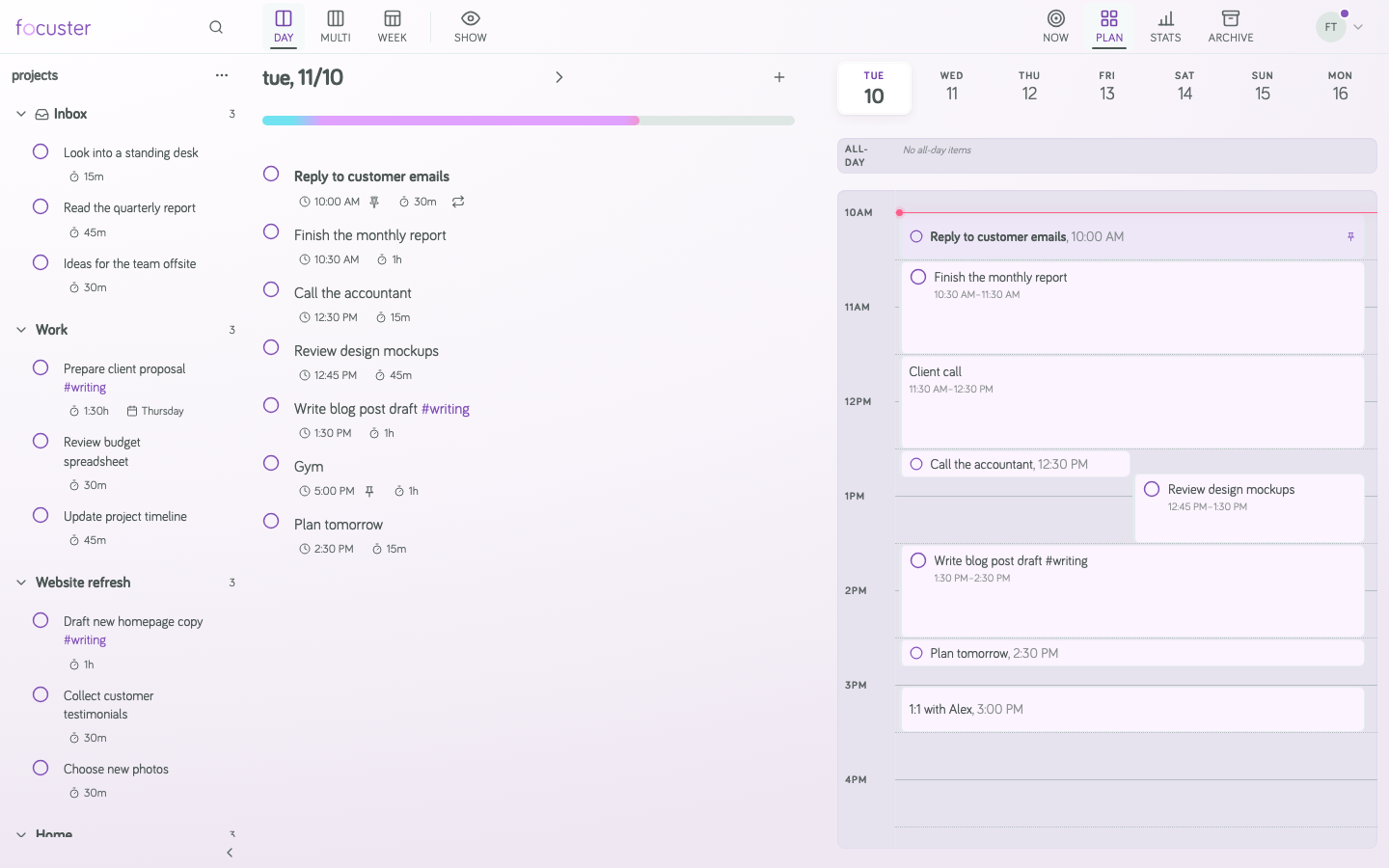
The Day List shows the Actions for one day. It is in the middle of the day plan, next to the calendar.
Order is priority
Focuster schedules the Day List from the top down. The first Action gets the first free time. So put the most important Action at the top.
To change the order, drag an Action up or down. Focuster schedules the day again at once, and the calendar shows the new times.
Add Actions to a day
- Select + at the top of the Day List to add a new Action at the top. See Add Actions.
- Drag an Action from the Inbox or a Project on the left into the Day List.
When you drag an Action out of the Inbox, it leaves the Inbox. When you drag an Action out of a Project, it stays in the Project too.
Move an Action to another day
Select the time under the Action. A menu opens:
- Today
- Tomorrow
- This Weekend
- Next Week (the Monday that starts next week)
- Unschedule (take the Action off its day)
You can also type a date in the menu.
Look at other days
- Use the arrows next to the date to go to the previous or next day. Select Today to come back.
- Press the Left and Right arrow keys to change the day.
- Select Multi or Week at the top to see several days at once.
Finish an Action
Select the circle next to the Action. Focuster marks it complete and schedules the rest of the day again. To see completed Actions in the list, select Show at the top.